Friday, April 3, 2009

Good Document for "Planning and Deploying Read-Only Domain Controllers"

I was engaged last week for a big project where I need to design a Read-Only Domain Controller "RODC" for a big customer in the gulf. to be honest i am new in the RODC, and i was searching alot for a document to detail for me the design concepts and criteria for RODC. by the way, RODC is a new Domain Controller Role which is part the Windows 2008 Active Directory Infrastructure.


What is RODC ?


Read-only domain controllers (RODCs) are a new feature of Active Directory Domain Services (AD DS) in Windows Server 2008. RODCs are additional domain controllers for a domain that host complete, read-only copies of the partitions of the Active Directory database and a read-only copy of the SYSVOL folder contents. By selectively caching credentials, RODCs address some of the challenges that enterprises can encounter in branch offices and perimeter networks (also known as DMZs) that may lack the physical security that is commonly found in datacenters and hub sites. RODCs also offer a number of manageability improvements that are described in this guide.


So, i would like to share the link for this good document for you to download and get to know more about RODC. Am in the process of finalizing this design for the customer based on this document. I advice anyone who wants to know, design, present, love to read , more about RODC to download this document from the below link:

Planning and Deploying Read-Only Domain Controllers - RODC


Sunday, March 22, 2009

How to Migrate from Exchange 2000/2003 to Exchange 2007 "Transitioning Guidelienes"

The transition process from Exchange 2003 to Exchange 2007 is a relatively straightforward process and involves the following high level tasks:

  1. Prepare the Active Directory directory service, you can extend the Active Directory schema and create the Active Directory objects and universal security groups to support Exchange 2007 before you install the server roles. Run setup.com /PrepareAD from the command line on the domain controller that is the schema master at the forest root. When you run setup.com /PrepareAD, the task setup.com /PrepareLegacyExchangePermissions also runs to create the universal security group that is granted permissions to send e-mail to Exchange 2007 Hub Transport servers.
  2. Supress minor link state updates on all Exchange 2003 front end servers.
  3. Deploy Exchange 2007 CAS/HUB servers in the same organization/forest as the existing Exchange 2003 servers and choose FE_SERVERNAME as the routing group connector destination

    Note: Using an Exchange Server 2003 front-end server together with an Exchange 2007 Mailbox server is not supported.
  4. Configure the routing group connector to use all Hubs servers.
  5. Deploy the Edge servers
  6. Configure the external firewall to allow for outbound SMTP traffic from the Edge servers.
  7. Configure Edge Sync subscription and rest of the Edge settings.
  8. Configure the external firewall 1:1 NAT for both Edge servers to allow for incoming SMTP traffic.
  9. Delete the old SMTP connectors.
  10. Deploy Exchange 2007 mailbox servers
  11. Configure Public folder replication
  12. Configure the CAS web services virtual directories by following the below steps:

    a. Configure CAS OWA virtual directories to support integrated authentication and to set the the external URL

    b. Configure Outlook Anywhere internal/external URLs with Integrated authentication and set the External/Internal URLs

    c. Configure ActiveSync external URL

    d. On the Exchange 2003 backend clusters; configure the ActiveSync virtual directory to use Integrated Authentication

    e. Configure OAB URLs using the Exchange Management Console and configure it to use HTTPS instead of HTTP
  13. Configure rest of the CAS settings
  14. Publish the ActiveSync through ISA 2006
  15. Test co-existence between both servers:

    a. GAL co-existence is automatically achieved since all servers share the same Active Directory information. This means the GAL will appear the same for both Exchange 2007 and 2003 users

    b. Email connectivity between Exchange 2003 to Exchange 2007 servers will automatically be enabled because of the Routing Group Connector created by the installation of the Hub server role
  16. Move sample mailboxes using the Exchange 2007 move mailbox wizard or cmdlet as a test for the migration

    Note: You do not need to move your existing contacts or distribution groups. They will be available in Active Directory even if you remove your Exchange 2003 or Exchange 2000 servers
  17. On an Exchange 2007 server, for each offline address book (OAB), move the generation process to an Exchange 2007 server. For detailed steps, see How to Move the Offline Address Book Generation Process to Another Server.
  18. Upgrade the email address policies
  19. Upgrade the address lists

    Note: Use the LDAP to OPATH converter tool
  20. Change the routing group connectors to use the Exchange 2003 backend server
  21. Decommission Exchange 2003 Front End servers
  22. Move rest of the mailboxes to the Exchange 2007 mailbox cluster

    Note: If you have any Exchange 2003 or Exchange 2000 recipient policies that have not been applied, moving the mailboxes to an Exchange 2007 server will force the recipient policies to be re-evaluated and applied. Before you move mailboxes, make sure that you want to apply all of the existing recipient policies. If you have an existing recipient policy that you do not want to apply, clear the automatically update e-mail address based on e-mail address policy check box in Active Directory Users and Computers. For more information, see the Exchange Server Team Blog article Yes, Exchange 2007 really enforces Email Address Policies.

    Note: The old Exchange 2003 backend will be running for at least 1 week in order to allow Outlook clients to automatically update their profile to point to the new Exchange 2007 mailbox cluster, otherwise, if the cluster is decommissioned immediately, clients will not be able to access their mailboxes until their profiles are modified to use the new Exchange mailbox server. KOC must ensure that all Outlook clients will logon at least once during this week for their profiles to be updated. Clients that do not logon before the old cluster is decommissioned must be updated manually. Exprofile can be configured to run as a logon script for the MAPI users to automatically configure their Outlook profiles to use the new mailbox server.
  23. Remove the Exchange 2003 backend servers. The decommissioning of the Backend servers should be conducted after making sure that all clients are redirected to the Exchange 2007 servers
  24. Remove the last Exchange 2003 server from the organization. For detailed steps, see http://technet.microsoft.com/en-us/library/bb288905(EXCHG.80).aspx
    Note that these are just a guidelines to help in your migration planning, i'm not covering all of the scenarios and situations which will vary according to the environment design & setup.

I hope the above steps will be useful to the readers, as the above steps i always use in my deployments for customers.

Tuesday, March 10, 2009

Best Practices and Guidelines for Hyper-V with Exchange Server 2007 SP1

Am Back Again :)

Today we will talk about the new Hyper-V technology support for the Messaging virtualization from Microsoft, Microsoft released its hardware virtualization software a while ago and eventually the Exchange Server 2007 SP1 is supported in the production environment, in able to make it supported, certain aspects and conditions must be met otherwise you will put yourself in unsupported situation, in this document we will refer to the Windows Server 2008 that will hold the Hyper-V component and will host the virtual servers as the Root, the Virtual Machine that will be running on the Hyper-V are called the Guest, so let's start..

First let's list some of the supported software to fully function in the production over a virtualized environment, below are the list with the latest updates on 26th August 2008:
  • Microsoft Application Virtualization (App-V)
  • Microsoft BizTalk Server
  • Microsoft Commerce Server
  • Microsoft Dynamics AX
  • Microsoft Dynamics CRM
  • Microsoft Dynamics NAV
  • Microsoft Exchange Server (Except UM role)
  • Microsoft Forefront Client Security
  • Microsoft Intelligent Application Gateway (IAG)
  • Microsoft Forefront Security for Exchange (FSE)
  • Microsoft Forefront Security for SharePoint (FSP)
  • Microsoft Host Integration Server
  • Microsoft Internet Security and Acceleration (ISA) Server
  • Microsoft Office Groove Server
  • Microsoft Office PerformancePoint Server
  • Microsoft Office Project Server
  • Microsoft Office SharePoint Server and Windows SharePoint Services
  • Microsoft Operations Manager (MOM) 2005
  • Microsoft Search Server
  • Microsoft SQL Server 2008
  • Microsoft System Center Configuration Manager
  • Microsoft System Center Data Protection Manager
  • Microsoft System Center Essentials
  • Microsoft System Center Operations Manager
  • Microsoft System Center Virtual Machine Manager
  • Microsoft Systems Management Server (SMS)
  • Microsoft Visual Studio Team System
  • Microsoft Windows HPC Server 2008
  • Windows Server 2003 Web Edition
  • Microsoft Windows Server Update Services (WSUS)
  • Windows Web Server 2008

Conditions to support Exchange Server 2007:

  • In Microsoft virtualization environment, it must be Windows Server 2008 Hyper-V x64 (Not Virtual Server NOT virtual PC)
  • The Virtualization software other than Microsoft Hyper-V must pass the Server Virtualization Validation Program SVVP (at this moment only Hyper-V passed this test)
  • Exchange Server 2007 must be with SP1 or later
  • Exchange Server 2007 with SP1 must be installed on a guest operating system running Windows Server 2008 x64
  • Support high availability and Exchange clustering Local Continuous Replication, Cluster Continuous Replication, Single Copy Cluster and Standby Continuous Replication. However when using Quick Migration with Hyper-V the CCR and SCC will not be supported.
    Exchange Server 2007 installed without the Unified Messaging Server role, the UM server role is not yet supported
  • If you will use virtual hard disks, Only Fixed Size Disks are supported. Differencing, dynamically expanded or any virtual storage are not supported, ONLY FIXED SIZE HARD DISK is supported as virtual disk type
  • The Root Server (the one that run the Hyper-V components) must be dedicated server for that purpose, it's not supported to install any other software on the Root server, it should function only as Hyper-V Server
  • Hyper-V include a feature called snapshots that you can revert the system back to this captured state, but it's not supported with Exchange Server 2007 Virtual Guest as the Snapshot is not Exchange-Aware
  • The virtual processor-to-logical processor mapping must not exceed 2:1 otherwise it's not supported, that's mean if you have server with two processors with dual core, that's make total of 4 logical processors, the maximum supported is 2:1 which is 8 CPUs in this case, note that these 8 CPUs is the maximum allowed per ALL guests on the same root
  • hardware-based VSS solutions is not supported to back up virtualized Exchange Server

Guidelines, Recommendations and best practices:

  1. Use pass-through SCSI storage disks or internet iSCSI storage for better performance
  2. Before creating virtual disk, it's recommended to start disk defragment on the root server to reduce disk fragments
  3. Install the integration services on the guest operating system
  4. Ensure that an enforced Data Execution Prevention (DEP) must be available and enabled on the hardware level
  5. Keep in mind that if you will use Windows Server 2008 datacenter Edition, you physical memory can support up to 1 TB (TERABYTE) of memory, with enterprise edition you limited to 64 GB, and for standard only 32 GB of memory
  6. Hyper-V is supported on physical computers with up to 16 logical processors.
  7. You can use TPM chip with Bit Locker ® security feature of Windows Server 2008 to secure your virtual hard disks
  8. The virtual fixed size hard disk is limited in size to 2040 Gigabyte of disk space, while the pass-through physical disks are not limited to a space
  9. You can take up to 50 snapshots of per guest, it's supported only to make your backup solution for a recovery of Exchange disasters
  10. When allocating the number of virtual processors don't forget the root server share of the
    Use Windows System Resource Manager WSRM to control the resources utilization
  11. When calculating the total number of virtual processors required by the root machine, you must also account for both I/O and operating system requirements. In most cases, the equivalent number of virtual processors required in the root operating system for a system hosting Exchange virtual machines is 2. This value should be used as a baseline for the root operating system virtual processor when calculating the overall ratio of physical cores to virtual processors. If performance monitoring of the root operating system indicates you are consuming more processor utilization than the equivalent of 2 processors, you should reduce the count of virtual processors assigned to guest virtual machines accordingly and verify that the overall virtual processor-to-physical core ratio is no greater than 2:1.
  12. The Exchange server guest machine's storage and network design requires additional considerations for the root machine, specifically, the impact to the CPUs on the root machine. In some hardware virtualization environments (such as Hyper-V), all I/O requests that are made by guest virtual machines are serviced through the root machine. In these environments, we recommend that no other I/O intensive applications (for example, Microsoft SQL Server) be deployed on guest machines that are hosted on the same root machine as Exchange server guest machines.
  13. Use multiple network adapters for network-intensive VM workloads, and management
  14. Ensure your storage hardware has I/O bandwidth and capacity to meet current and future needs of the VMs.
  15. Consider Placing VMs with highly disk-intensive workloads on different physical disks will likely improve overall performance
  16. If using clustering, make one Exchange cluster node on one Root, and the other node on another Root to truly achieve high availability

Friday, March 21, 2008

How to Upgrade your Exchange Server 2007 Environment to Exchange Server 2007 Service Pack 1 (Part II: How to Upgrade a Clustered Mailbox Server in a CCR Environment).

This is the Second Part of the Exchange Server 2007 Service Pack 1 Upgrade Series. in this article i will show you the upgrade process of Second Scenario of Exchange Server 2007 Deployments, which is "Cluster Continuous Replication - CCR".

This is the First Article in this Article Series, which talks about Upgrading Typical Exchange Server 2007 to SP1:

Am using off course Microsoft Virtual Server 2005 R2 to run my 5 Virtual Servers. these are the servers I am running on my Lab:

image


  • PRODC01: This is my and Only Domain Controller which hosts my Single Domain Model which is called "ProRangers.net"
  • PRO-HC1: This is Exchange Server 2007 HUB and CAS Server Roles and also my File Share Witness Server (FSW Server).
  • PRO-CCR1: This is the First Cluster Continuous Replication Node - First CCR node or in other words, the Active Node.
  • PRO-CCR2: Last Server which is the Second Cluster Continuous Replication Node - Second CCR node or in other words, the Passive Node.
  • PROMAIL: this is my Clustered Mailbox Server Cluster Group Name.


Exchange 2007 Service Pack 1 Software Requirements


As I mentioned on the First Part of this Article Series, Exchange 2007 SP1 requires the following Software updates and hotfixes to be deployed under all your Exchange Server 2007 RTM Versions. its recommended to deploy these requirements before the actual upgrade process of SP1. These Requirements are:

For Production Exchange Environment (running 64-Bit Version):

For Testing Exchange Environment (running 32-Bit Version):

in my lab, I installed the above requirements before I started the actual upgrade process of SP1.

Which Server needs to be upgraded first ? and what is the recommended upgrade process for Exchange 2007 ?

the Recommended Upgrade sequence for your Exchange 2007 Environment based on your Server Roles, is to start with Client Access Servers - CAS which is the Internet Facing Server and to leave any Mailbox Server Role till the end of the Upgrade process. Start upgrading the First CAS Server , then continue with other CAS Servers under same AD Site or other AD Sites. here is the recommended Upgrade Path based on Exchange Server Roles:

1. Client Access servers
2. Unified Messaging servers
3. Hub Transport servers
4. Edge Transport servers
5. Mailbox servers


Microsoft Says "If you upgrade your servers in this order, you may avoid potential service interruptions"

Important Points to consider for upgrade process for Clustered Mailbox Server in CCR Environment

There are specific things that must be considered and planned for with respect to upgrading a clustered mailbox server in CCR environment to Service Pack 1:

  • before you can upgrade to Exchange Server 2007 SP1 , the Clustered Nodes must be running Windows Server 2003 SP2.
  • a clustered mailbox server can be upgrade to Exchange Server 2007 Service Pack 1 ONLY by using the Command-Line Version of Setup (Setup.com /UpgradeCMS), you can't use the graphical user interface version of setup to upgrade an existing Clustered Mailbox Server running RTM Version of Exchange 2007 to service pack 1 Version of Exchange 2007.
  • backup your clustered mailbox server prior to upgrading to Exchange Server 2007 Service Pack 1 and also after successfully completing the upgrade service pack 1.
  • update the operating system for all your Servers running the RTM Version of Exchange Server 2007 that mentioned above before you start the upgrade process to SP1. the upgrade process will not start if the above update (KB933360) was not installed on all your Exchange Servers 2007.
  • upgrading clustered mailbox server in CCR environment to Service Pack 1 results in outage for the email service during the upgrade process.
  • Both Nodes need to be upgraded to Service Pack 1 in order to be supported, but you must upgrade each node one at a time, then after each node has been upgraded to Service Pack 1, then the Clustered Mailbox Server is upgraded and then brought online.
  • move all clustered resource groups to the active node which includes the clustered mailbox server - CMS, then start with Passive Node, don't start with Active Node. (In my lab, i will start with PRO-CCR2).

Upgrade Passive Node (PRO-CCR2) of Clustered Mailbox Server in CCR Environment

now, we can start the upgrade process of Clustered Mailbox Server in a CCR Environment, we will start with the Passive Node First, so here are the steps:

  1. Logon to the Passive Node (PRO-CCR2) that has delegated the Exchange Server Administrators Role and is part of Local Administrator of on the Passive Node. for my lab i use the Domain Administrator Account. remember that we don't require a user that has been delegated the "Exchange Organization Administrators", such user account is only required when you upgrade your First Exchange Server 2007 RTM Server under your Forest, cause it needs a permission on the AD Schema and Exchange Organization Containers and Folders under the schema, since I had a Hub and CAS server already installed under this organization, i used such account to upgrade this first Hub and CAS server. after the successful installation of my first Exchange 2007 RMT Server to SP1 , then the rest of the upgrade process i only require a user which has been delegated the "Exchange Server Administrators" Role.
  2. Move all Clustered Resources Groups to the Active Node (PRO-CCR1). make sure that the passive node hosts NO Cluster Resources, all Clustered Resources and Groups need to be moved to the Active Node. Clustered Mailbox Server Cluster Group can be left with Online Status at the Active CCR Node during the upgrade process on the passive node. you can use this command from the command line of the passive Node to move your clustered resources from passive node to active node: cluster group <Cluster_Group_Name> /Move
  3. Start the Windows Firewall/Internet Connection Sharing (ICS) service. This service is disabled by default, and you must set its Startup type to Manual or Automatic for the service to be started, starting this service is necessary to allow SP1 Setup to add Windows Firewall exceptions for Exchange services. After the clustered mailbox server has been upgraded on passive node, you can stop and disable this service. here i used the manual status.

    SP1 on Active CCR Node # 1

  4. Stop any Performance Counters services, like Performance Logs and Alerts and any Microsoft Operations Manager agents.
  5. Stop, and then restart the Remote Registry service on the passive node.

    SP1 on Active CCR Node # 2
  6. Open a Command Prompt window, and then navigate to the Exchange 2007 SP1 installation files, then run the following command:

    D:\Setup.com /m:upgrade

    where D: Drive is my DVD Media

    SP1 on Passive CCR Node # 3

    SP1 on Passive CCR Node # 4

    SP1 on Passive CCR Node # 5
  7. Now, after we successfully upgraded the Passive Node (PRO-CCR2) , we have to restart the passive node, this is a must. Now, in my lab, i faced an issue from leaving the Windows Firewall Service in the starting state, and i lost communication between the Two Nodes, so since i don't use Windows Firewall in my lab, and since i am not enabling the Fire Wall service between the Clustered Node, i sat it again as disabled, and restarted the passive node again, and everything was working fine. If you faced the same issue in your production environment, and you are not enabling the communication between the two Clustered Nodes through Windows Firewall, just disable it back again as it was before the upgrade, and restart your passive node again.

Upgrade Clustered Mailbox Server - CMS (or in my lab PROMAIL) in CCR Environment

now, after successfully we upgraded the Passive Node of the Clustered Mailbox Server in the CCR Environment, the next step would be to upgrade the Clustered Mailbox Server Clustered Group - CMS , where i called it here in my lab as (PROMAIL). in this step we will upgrade the CMS from the passive node, and while the CMS Group is in Offline State, its important to bring the CMS Group or PROMAIL (as I call it in my lab) offline before you upgrade it to SP1. here are the steps you need to do:

  1. after you logged into Passive Node (PRO-CCR2), open Exchange Management Shell (EMS) of Exchange Server 2007, and bring the Clustered Mailbox Server "CMS" - PROMAIL offline. you have to know that by starting this process, your Mail Service will be down, so the users will not be able to connect to their mailboxes till you successfully complete CMS Upgrade process to Service Pack 1. To bring the CMS Cluster Group (PROMAIL) offline, run the following command from EMS:

    Stop-ClusteredMailboxServer PROMAIL -StopReason "<Type Any Descriptive Reasons like : Upgrading CMS to E2K7SP1>"

    SP1 on Passive CCR Node # 6

    from the above screen, to can see that the command asks for Confirmation for the action that is going to be applied to your CMS Cluster Group, so click "Y" to proceed. if you want to provide this confirmation within the "Stop-ClsuterMailboxServer" command, then this is the full command:

    Stop-ClusteredMailboxServer PROMAIL -StopReason "<Type Any Descriptive Reasons like : Upgrading CMS to E2K7SP1>" -Confirm:$False

  2. now, you need to move the Clustered Mailbox Server - CMS "PROMAIL" from CCR Active Node (which is not yet upgraded to SP1) to CCR Passive Node (which was upgraded successfully to SP1) by running the following command from Passive Node (PRO-CCR2):

    Move-ClusteredMailboxServer PROMAIL -TargetMachine PRO-CCR2 -MoveComment "<use your own comments here>"

    SP1 on Passive CCR Node # 8

    also, to append the confirmation for this command along with your command, here is the full command:

    Move-ClusteredMailboxServer PROMAIL -TargetMachine PRO-CCR2 -MoveComment "<use your own comments here>" -Confirm:$False
  3. Now, after we move the Clustered Mailbox Server "CMS" - PROMAIL from Active CCR Node (PRO-CCR1) to Passive CCR Node (PRO-CCR2), we need to upgrade the Clustered Mailbox Server - CMS - Cluster Group to Service Pack 1 Version. browse to Exchange Server 2007 Service Pack 1 Setup Files , and run the following command from the command line:

    D:\Setup.com /UpgradeCMS

    UpgradeCMS

    UpgradeCMS #2

    UpgradeCMS # 3

    After successfully upgrading the Clustered Mailbox Server - CMS (PROMAIL) to Service Pack 1 Version, the Setup brings this Cluster Group Online again, and your users can access their mailboxes again. when you reach this stage, actually your Exchange Service provided by Exchange Server 2007 will be running Service Pack 1 Version of Exchange Server 2007 with full features provided by SP1, the only remaining step is to upgrade your First (Active CCR Node - PRO-CCR1). which will be demonstrated in the following section.

Upgrade Active Node (PRO-CCR1) of Clustered Mailbox Server in CCR Environment

now, we can start the upgrade process of the first CCR Node (PRO-CCR1) in the CCR Environment:

  1. Logon to the First Node (PRO-CCR1) that has delegated the Exchange Server Administrators Role and is part of Local Administrator of on the First Node.
  2. Move all Clustered Resources Groups to the Second Node (PRO-CCR2). make sure that the First Node (PR-CCR1) hosts NO Cluster Resources, all Clustered Resources and Groups must be moved to the Second CCR Node which was successfully upgraded to SP1 and which runs the CMS Cluster Group. Clustered Mailbox Server Cluster Group can be left with Online Status at the Second CCR Node during the upgrade process on the First CCR Node. you can use this command from the command line of the First Node to move your clustered resources from first node to second node:

    cluster group <Cluster_Group_Name> /Move
  3. Start the Windows Firewall/Internet Connection Sharing (ICS) service on the First CCR Node.

    SP1 on Active CCR Node # 1
  4. Stop any Performance Counters services, like Performance Logs and Alerts and any Microsoft Operations Manager agents.
  5. Stop, and then restart the Remote Registry service on the First Node.

    SP1 on Active CCR Node # 2
  6. Open a Command Prompt window, and then navigate to the Exchange 2007 SP1 installation files, then run the following command:

    D:\Setup.com /m:upgrade

    where D: Drive is my DVD Media

    SP1 on Active CCR Node # 4
  7. After successfully upgrading the First CCR Node, you need to restart the CCR Node first, and don't forget to disable back the Windows Firewall Service before the restart.
  8. after you upgraded all your Exchange 2007 Servers from RTM to Service Pack 1 Edition, open Exchange Management Console, and make sure that all your Exchange Servers have the same Version Edition.

    Exchagne Version after SP1

Conclusion

I know that this article and most of my articles are very detailed ones :) but i feel that i have to be detailed in my articles so others can understand exactly what i am talking about in my articles. I would appreciate from the readers to rate this article if they found it good, Excellent, or even Bad article.

stay tuned for others upcoming articles.

Saturday, March 1, 2008

Exchange 2007 SP1 Upgrade Failed - Weird Problem while upgrading Exchange 2007 RTM to SP1

Hello all, while I was preparing my Virtual Machine which is running single Windows 2003 SP2 as DC and running Exchange 2007 RTM Version (HUB, CAS, and MBX) for my next article to post, I faced a weird problem which misses up the whole virtual machine, for no valid reason. Here is the problem that I faced:


I was updating this virtual machine to Exchange Server 2007 SP1, and while the upgrade was in the process, suddenly the whole machine got frozen, and it stayed like that for almost 30 minutes, I could not access it, where I had to force the shutdown of this machine. Now, when this machine restarted I logged on and found so many errors in the event viewer related for Exchange. Here is the Weird thing, I couldn’t find the Exchage 2007 folders under the program list, where did they go??????


So, I tried to run the SP1 upgrade setup again, using the GUI, but this is what I received:


“The Exchange Files are not installed, but the backup settings registry key is present. Only build to Build upgrade mode is available”


When I checked the services to see if any of the services are not working, I saw that all Exchange 2007 Services (around 13 Services) with IIS and others were disabled. Actually these services were disabled by the upgrade process, and suppose to be restarted again after the upgrade process finished successfully but since the installation failed in the middle of the way, all these services remains disabled.
Now, how to solve this problem?
Since the GUI could not solve my problem, I tried this time the Shell command, so I ran this command:

Setup.com /Mode:Upgrade


And also, it failed, but this time, the error is manageable somehow, this is the output I got:
----------------------------------------------------------------------------------------------------------------------
Welcome to Microsoft Exchange Server 2007 Unattended Setup

Preparing Exchange Setup

The following server roles will be upgraded

Hub Transport Role
Client Access Role
Mailbox Role

Performing Microsoft Exchange Server Prerequisite Check

Hub Transport Role Checks ......................... FAILED
Setup cannot continue with upgrade because 'C:\Program Files\Microsoft\Exchange Server\bin\ExchHelp.chm' is open. Close the file and restart setup.

Client Access Role Checks ......................... FAILED
Unable to read data from the Metabase. Ensure that Microsoft Internet Information Services is installed.

The World Wide Web (W3SVC) service is either disabled or not installed on this computer. You must exit Setup, install the required component, then restart the Setup process.

Setup cannot continue with upgrade because 'C:\Program Files\Microsoft\Exchange Server\bin\ExchHelp.chm' is open. Close the file and restart setup.

Mailbox Role Checks ......................... FAILED
Unable to read data from the Metabase. Ensure that Microsoft Internet Information Services is installed.

The World Wide Web (W3SVC) service is either disabled or not installed on this computer. You must exit Setup, install the required component, then restart the Setup process.

Setup cannot continue with upgrade because 'C:\ProgramFiles\Microsoft\Exchange Server\bin\ExchHelp.chm' is open. Close the file and restart setup.

The Exchange Server setup operation did not complete.Visit http://support.microsoft.com and enter the Error ID to find moreinformation.

Exchange Server setup encountered an error.
-----------------------------------------------------------

So, as you can see from the output of the upgrade command, the ExchHelp.chm file is missing and can’t be located under the Bin Directory of Exchange server 2007 in the path that was mentioned in the error output. Also the setup process can’t access IIS Metabase , off course because the IIS and other related services were disabled.

So, here are the steps I took to solve this problem:

  • Locate the ExchHelp.chm file from Exchange 2007 SP1 setup directory (located under “Media Drive:\Setup\ServerRoles\Common”) and copy it back under Exchange Binaries directory (BIN) located under my server ('C:\Program Files\Microsoft\Exchange Server\bin’).

  • Set the following services back to Automatic and started them:

    o IIS Admin Service
    o HTTP SSL Service
    o World Wide Web Publishing Service.

  • Rerun the upgrade again:

    Setup.com /Mode:Upgrade


And here we go, the setup completed SUCCESSFULLY :) and now I am happy, I restarted the server and testing the health of my server , everything is back to normal now, with an updated server to SP1 :)

Now, I can start preparing for my second article, Actually I stopped the article till I figure out why this problem happened, and thanks god I solved it :) now I am happy.

Stay tuned for my next article from my working virtual machine :)

Friday, February 29, 2008

How to Create Mailboxes for Bulk of Users using "Single Command Shell" in Exchange Server 2007

Exchange Management Shell, this powerful and amazing tool that comes along with Microsoft Exchange Server 2007 as one of the Two New Administrative Consoles that you can use to administer the entire Exchange 2007 Organization. I will show you, in this article one of the amazing techniques that you can use with Exchange Management Shell to create mailboxes for users that does not have a mailboxes, using one Single Command. EMS will allow you to locate all non-mailbox-enabled users under your active directory domain and immediately create a mailbox for all these users, and even specify under which mailbox store and storage group you want to host these new mailboxes.

I will show you as well, how to locate users based on command shared attributes between some of users and therefore create a mailbox for these users only, Great right :) So let’s start.

I am using one Domain Controller with Exchange 2007 SP1 Server installed to be able to show you with snaps what I am talking about here. I have created Two OU’s, First OU called “Rangers” my community :) , and second OU called “DotNetBoom” , another community “Enemy” :) just kidding. Now, I created new users under each OU without creating a mailbox for them.

Now, I want to locate or list all the users under my “ProRangers.net” domain that do not have mailboxes. In order to do that from Shell Command, I will be using the “Get-User” Command with a special attributes or Filter called “RecipientType” with a value of “User” to search for only non-mailbox users, here is the command:

Get-User l Where-Object{$_.RecipientType –eq “User”}

The output will be a list of all users that do not have a mailbox:

As you can see from the above screen, the command bring all the users under “prorangers.net” domain that does not have mailbox, even a list of a users that I don’t want to create a mailbox for, like Guest, Support_XXXXXX, krbtgt, IUSR_XXX, etc. Then what to do?


Ok, lets minimize the result by doing a search for a users that are located under a certain OU. Yes, you can do that, I’ve told you its amazing tools :) . Exchange Management Shell can get a list of all non-mailbox users that are located under certain OU by using “-OrganizationUnit” attribute along with “Get-User Command.


Let’s say I want to get a list of all users located under “Rangers” OU that does not have a mailbox, here is the exact command:

Get-User –OrganizationalUnit “Rangers” l Where-Object{$_.RecipientType –eq “User”}

Now, look to the output list:


Now, from the above list, you can see that these are my users that are located under my “Rangers” OU, for which I want to create a mailboxes. Now, lets create amailboxes for all these users under a mailbox store called “ProRangers Store”. I will use the same upper command to first get the list, then use the output of this list and pipeline it with another command to create the mailboxes for these users under the chosen mailbox store, here is the command:

Get-User –OrganizationalUnit “Rangers” l Where-Object{$_.RecipientType –eq “User”} l Enable-Mailbox –Database “ProRangers Store”}


And here is the output:


Using Single Shell Command, I could first locate all non-mailbox-enabled users that located under certain OU (Rangers) and then create a mailbox for them, did you see easier than this before ? I don’t think so :) . Imagine you have hundreds of users , no not hundreds , thousands of users that you want to create mailboxes for them, wouldn’t be easier for you to use such Tool ? I think yes.

Ok, now, lets go beyond this normal search. Lets say that you have single OU , and this OU contains users from multiple departments, and you want to create a mailbox for users from certain department, then my answer to you is “Exchange Command Shell - EMS” offcourse.


Lets take a look into the following OU called “DotNetBoom” and notice the Departments column for each user, specially the Users under “Training” Department:


Now, lets say I want to create a mailbox for those Trainer users who are working under “Training” Department. So, my command would search for the users under "DotNetBoom" OU who does not have a mailbox AND have “Training” Value under “Department” Attribute, here I combined two filters, first filter was the users without mailboxes, “AND” then the users that have “Training” value under “Department” Attribute. Then the output of this search will be used to “Mail-Enabled” these users, here is the command:


Get-User –OrganizationalUnit “DotNetBoom” l where-object{$_.RecipientType –eq “User” -and $_.Department –eq “Training”}


And this is the output of this command:
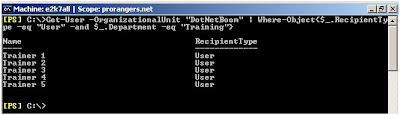

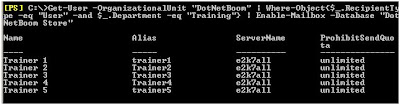
After you found your users or trainers , lets create a mailbox for them, and this time, I will place their mailboxes under another mailbox store called “DotNetBoom Store”, here is the complete command:

Get-User –OrganizationalUnit "DotNetBoom" l where-object{$_.RecipientType –eq “User” -and $_.department –eq “Training”} l Enable-Mailbox –Database “DotNetBoom Store”}

And here is the output :


Lets say you want to find your Trainees now that located under your domain if you don’t know where are your trainees located, but you know that they have a title of “Trainee” under “Title” Attribute of each user. Lets say I have a trainee under “DotNetBoom” and “Rangers” OU’s, and I want to create a mailbox for these trainees, then I would run the following command to find these trainees and create mailboxes for them under a special Mailbox Store created for the Trainees called “Trainee Store”:

Get-User l where-object{$_.RecipientType –eq “User” -and $_.Title –eq “Trainee”} l Enable-Mailbox –Database “Trainee Store”}


and here is the output for my trainee located under my domain “prorangers.net”:


Where, DTrainee X is located under “DotNetBoom” OU and PTrainee X is located under “Rangers” OU.


Ok, the last thing, I have users with mailboxes and users without mailboxes. Now, I want to create a mailbox for the remaining users across the “ProRangers” Domain and regardless their OU Location, but based on the following conditions:

· User does not have mailbox, AND
· Have the word “Community” in their ”Company” Attribute, by using -ilike filter switch.


So, here is the command:

Get-User l where-object{$_.RecipientType –eq “User” -and $_.Company –ilike ‘*Community*’} l Format-Table Name, RecipientType, Company

In the above command, I want the output to show me the name of the user, and the company name that belongs to that user, so I used “Format-Table” Switch. here is the output of the above command, and check the name of the company for each user, it meets the condition of the command, where the company contains the word “Community” and these are non-mailbox-enabled users too:


Fine, lets shoot the command that will create mailbox for these users, and locate them under “ProRangers Store” Mail Store:

Get-User l where-object{$_.RecipientType –eq “User” -and $_.Company –ilike ‘*Community*’} l Enable-Mailbox –Database “ProRangers Store”}

And here is the result,


Now, after we created mailboxes for all usesr using Command Shell, lets see who are the users that don’t have mailbox under “ProRangers” domain, using the first command at the beginning of this article, which is:

Get-User l Where-Object{$_.RecipientType –eq “User”}


And here is the output of this command:


Now, lets get the users who are “UserMailbox” Type of users, I will run the same command, but this time with “UserMailbox” instead of “User” for the RecipientType Filer, here is the command:

Get-User l Where-Object{$_.RecipientType –eq “UserMailbox”}


And the output this time you will figure it out, when you run this command :) Just hint, you the output should list all Mailbox-Enabled users under your Domain.

I hope that this article was somehow interrested to all of you, and you got something new and amazing by using the amazing tools “Exchange Management Shell

The First Rollup Update after Exchange Server 2007 Service Pack 1 is now RELEASED

Yes, Its true :) Microsot Exchange Product Team, has just release the First Rollup Update for Exchange Server 2007 Service Pack 1 Edition. This update is different than the Rollup Update 6 for Exchange Server 2007 RTM (Release To Manufacture) Edition, and can't be used to update the RTM Version of Exchange 2007 even, as Microsoft said.
so,

Note, before you update your Production Exchange SP1 or RTM Version, you have to test the update process on the lab, which is the recommendation always from everybody. so start testing it, and update your production servers to the latest updates and rollups for RTM and SP1 Versions.

Another thing, If you don't upgrade your RTM Version to SP1, then you missed the whole fun :) SP1 has a great features and new technologies as well as the latest rollup updates for SP1 which are 5 (Rollup Update # 6 came after the release of SP1 so its not included in this version of Service Pack, it might be included in the newer release of Service Pack 2, I don't know really :) )

Wednesday, February 20, 2008

How to Upgrade your Exchange 2007 Environment to Exchange Server 2007 Service Pack 1 (Part I: Install SP1 on Typical Exchange 2007 Installation)

The new release of Exchange Server 2007 Service Pack one has a new features and technologies which covers so many areas of Exchange Server 2007 RTM Release which will help to increase productivity and reduce administrative overhead. These new features and technologies were not available in the RTM Release of Exchange 2007. Here are some of these features:


  • Native IPV6 support (Windows Server 2008 & Windows Vista)

  • Public folder configuration from GUI Interface of Exchange Management Console (EMC).

  • POP and IMAP configuration from GUI Interface of Exchange Management Console (EMC).

  • SendAs permission configuration from within EMC.

  • Outlook Web Access Enhancement (Month view, Public Folder Web Access, More languages for spell checking, Personal distribution lists, support for viewing Office 2007 file formats as HTML.

  • Deleted items recovery from OWA, S/MIME in OWA, and more).

  • Delegation wizard scenarios.

  • Delegate management.

  • Folder permission management.

  • Ability to export mailboxes to PST files.

  • New High Availability (Continuous Replication) Technologies (Standby Continuous Replication – SCR).

  • Better integration between OCS and Exchange Server.

  • Manage Clustered Mailbox Server from within Exchange Management Console – EMC.

  • And more new Shell Commands to manage your Exchange Organization from the new Administration Console – Exchange Management Console (EMS).

I will talk in details in my coming articles about these new features and technologies, but now, I will talk about the upgrade process to show you how it’s easy to upgrade your current production exchange server to SP1. This article will show you how to upgrade your production Exchange 2007 Environment in different scenarios (Typical & Clustered Mailbox Server either in Single Copy Cluster – SCC, or Continuous Cluster Replication – CCR) using the Setup Wizard or Command Prompt.


Things to know before you Start the Upgrade Process:


Before you start the upgrade process of Exchange Server 2007 RTM Environment to SP1, here are some important points you need to take into your consideration:


  • If the first upgrade failed for one or more server roles, you must run the upgrade again.

  • If you have multiple Exchange Server 2007 Servers under your Exchange Organization, its recommend that you first upgrade the Client Access servers (CAS). In an organization that has multiple Active Directory sites that use multiple Client Access servers in a proxy situation, you must upgrade the Internet-facing Client Access servers before the Client Access servers that are not Internet-facing, in other words, start the upgrade process from the server that you use to access your mail from outside using Outlook Web Access (OWA).

  • It is not supported to upgrade the operating system that runs on your Exchange 2007 Servers (RTM) Version from Windows Server 2003 to Windows Server 2008.

  • It’s not supported to upgrade the operating system that runs on your Exchange Server 2007 SP1 Version from Windows Server 2003 to Windows Server 2008.

  • To deploy Exchange 2007 SP1 on Windows Server 2008, you must install Windows Server 2008 on a computer that does not have Exchange installed at all, and then install Exchange 2007 SP1 Version. The RTM Version of Exchange 2007 does not support to be installed on Windows Server 2008, you need to use the newer version of Exchange Server 2007 RTM that comes with SP1. Or you can use directly the SP1 binaries to have a fresh installation of Exchange Server 2007 on Windows Server 2008 as well Windows Sever 2003.

  • It’s recommended that you stop and then restart the Remote Registry service on the computer that you want to upgrade its Exchange 2007 Version from RTM to SP1.

  • You cannot use the Setup wizard to upgrade a clustered Mailbox server, you have to use the Command Prompt to do the upgrade.

  • When you upgrade Exchange 2007 RTM server to Exchange 2007 SP1, you upgrade all the server roles that are installed on that server.

  • After you upgrade your Exchange Server to Exchange 2007 SP1, you cannot uninstall the service pack to revert to Exchange 2007 RTM. If you uninstall SP1 then you will remove Exchange 2007 completely from the server.

What permission do you need?

  • If you are upgrading your First Exchange 2007 RTM Server under your Exchange Organization that has Client Access, Hub Transport, Mailbox, or Unified Messaging server role installed then the account you use must be delegated the Exchange Organization Administrators role. The account must also be a member of the local Administrators group on that computer.

  • If you are upgrading your Edge Transport server role to SP1, the account you use must be a member of the local Administrators group on that Edge Server.

  • After you upgraded the First Exchange 2007 RTM Server under your organization to SP1, to upgrade any additional Exchange RTM Servers under the same Exchange Organization to SP1 the account you use must be delegated the Exchange Server Administrators role, cause Exchange SP1 contains AD Schema and Domain Updates, The account must also be a member of the local Administrators group on that computer.

  • To upgrade a computer that has only the Exchange management tools installed, you must log on by using an account that is a member of the local Administrators group on that computer.

  • To upgrade the AD Schema before the actual SP1 upgrade process, then the account you use to upgrade the server must be a member of the Schema Admins group and the Enterprise Admins group.

  • To Prepare Active Directory (AD) for Exchange Server 2007 SP1, the account you use must be member of the Enterprise Admins group.

  • To upgrade your Active Directory Domain, the account you use to upgrade the server must be a member of the Domain Admins group.

  • To update the AD Schema separately before the SP1 upgrade, you need to run the following command from the Command Prompt window on a computer that is in the same domain and Active Directory site as the schema master

    Setup.exe /PrepareSchema or Setup.exe /PS

  • To update Active Directory (AD) separately before the SP1 upgrade, you need to run the following command from the Command Prompt window on a computer that is in the same domain and Active Directory site as the schema master:

    Setup.exe /PrepareAD or Setup.exe /p

  • To update Active Directory Domain separately before the SP1 upgrade, you need to run the following command from the Command Prompt window from your Exchange Server:

    Setup.exe /PrepareDomain or Setup.exe /pd
  • To prepare all domains under your Forest in case you have child and subchild domains, then run the following command

    Setup.exe /PrepareAllDomains or Setup.exe /pad

Exchange Server 2007 SP1 Prerequisites


Exchange 2007 SP1 requires the following updates to be installed on the Exchange Server that you are going to upgrade from RTM Version to SP1 Version ( Off course for the Production you gonna use the 64-Bit Edition, and for the Testing Environment you going to use the 32-Bit, so i am listing both here) :

1. For Production Exchange Environment (running 64-Bit Version):

2. For Testing Exchange Environment (running 32-Bit Version):

Scenario # 1: Install SP1 on Typical Installation of Exchange Server 2007.


We mean by Typical Installation of Exchange when you install the Default Roles of Exchange Server 2007 on single server. The default server roles of Exchange are the non clustered Exchange Roles, which are HUB Transport Role (HUB), Client Access Server Role (CAS), and Mailbox Server Role (MBX). Edge Server is not included in the typical installation since it can’t be installed with any other exchange roles. It has to be installed alone in the DMZ Area and should not be member of your AD domain. So let’s assume that you have one server having these three typical or default roles.


Upgrade your Exchange (Typical) Server 2007 to SP1 using Setup Wizard:


  1. Log on to the server on which you want to install Exchange 2007 SP1.

  2. Insert the Exchange Server 2007 SP1 DVD into the DVD drive.


  3. On the Start page, under Install, click Install Microsoft Exchange Server 2007 SP1.


  4. In the Exchange Server 2007 SP1 Setup wizard, on the Introduction page, click Next.


  5. On the License Agreement page, select I Accept the terms in the license agreement, and then click next.


  6. On the Readiness Checks page, , The current system will be validated and if the current server has any critical issues the setup will not continue, in our case the only warning was about the .Net Framework SP1 that was already installed. Just click on Upgrade to start the upgrade process.


  7. Now, the actual upgrade process will start, here are some screens of the progress and status of the upgrade process:


  8. On the Completion page, click Finish.


  9. To verify the new Release Build number of Exchange Server 2007, open Exchange Management Console – EMC, and click on “Server Configuration”, and note the number under “Version” Column in the middle screen, as shown below:


    The new build number is Version 8.1 (Build 140.6)

  10. to get Exchange Versions and Editions using Command Shell, run the following command:

    Get-ExchangeServer l Format-List Name, Edition, *Version*

    or, for simplicity

    Get-ExchangeServer l fl Name, Edition, *Version*

This command will get you all Exchange Server's Edition (Standard or Enterprise) and the version of exchange Exchange server under your Exchange Organization.

To upgrade your Exchange (Typical) Server 2007 to SP1 using Command Prompt:


  1. Log on to the server on which you want to install Exchange 2007 SP1.


  2. Insert the Exchange Server 2007 SP1 DVD into the DVD drive.


  3. At a command prompt, run the following command.

    setup /mode:upgrade


  4. Now the upgrade process will start from the Command Shell, during the upgrade the progress of each upgrade process will appear within the Command Shell Screen. after the upgarde finishes, you will get the same result shown below:


Conclusion


This is the end of Part I, which shows you the detailed steps on how to upgrade your Typical Exchange 2007 upgrade process from RTM to SP1. The upcoming articles of this series are:


Part II: How to Upgrade a Clustered Mailbox Server in a CCR Environment to Exchange 2007 SP1.


Part III: How to Upgrade a Clustered Mailbox Server in a SCC Environment to Exchange 2007 SP1.

Monday, February 18, 2008

New update for Exchange Server 2007 Help File

I was checking the Exchange Server 2007 Documentation Site, and i noticed that there are a newer update for MS Exchange Server 2007 Help File. the newer update is on 6th of Feb 08, and the size of this file is arround 20 MB.

Download it from the following Link:

Microsoft Exchange Server 2007 Service Pack 1 Help

Monday, February 11, 2008

Windows Server 2008 - Try It

Try out Windows Server 2008 in a virtual environment by following step-by-step guides that walk you through specific scenarios around running applications from anywhere, high availability, server management, and security and policy enforcement.
Don't Miss it, be the First who test The New Windows Server Technology :)

Saturday, January 5, 2008

How to Install MS Exchange Server 2007 on a new Server under a New Active Directory Domain/Forest - Part II

This is Part II of the Article Series of "How to Install MS Exchange Server 2007 on a new Server under a New Active Directory Domain/Forest". In this article we will start with Updating Active Directory Domain with Exchange Organization Information.

Prepare Active Directory Domain with Exchange Organization Information

In this step we will prepare Active Directory Domain with Exchange Organization Name and will create Exchange Server 2007 Containers under Active Directory Domain Partition. the New Organization will be created when the update process completed successfully.

To update Active Directory Domain with New Exchange Organization:
  1. Logon to the server where you will install Exchange Server 2007 with an domain account that is member of "Domain Admins" group. to make sure that you are loggin by the correct user, logon by the Domain Administrator Account "Administrator".
  2. Put your Exchange Server 2007 Media DVD on the CD Room, and go to Command Prompt screen. go to Run ---> cmd.exe, then click Enter.

  3. Change the path in the command promt to your Exchange 2007 Media Drive.
  4. run the following command :
    setup.com /PrepareAD /OrganizationName:"Organization Name" or setup.com /p /on:"Organization Name". then click on Enter .

  5. Now the Setup Process will contact your Domain Controller and updates the Domain Partition and Configuration Partition with Exchange Server 2007 New Contrainers and New Orgazation Name will be created as well.


  6. To verify that this step completed successfully, make sure that there is a new organizational unit (OU) in the root domain called Microsoft Exchange Security Groups. This OU should contain the following new Exchange USGs:

    Exchange Organization Administrators
    Exchange Recipient Administrators
    Exchange View-Only Administrators
    Exchange Servers
    ExchangeLegacyInterop

    as shown below:


  7. After the process of Updating Active Directory Domain has been finished, and the Exchange Organization has been created, allow time for replication between all your domain controllers, or you can force the replication between your domain controllers from Active Directory Sites and Services MMC.

Install the First Exchange Server 2007 Server under the new Exchange Organization

Now after we prepared the Active Directory Domain and Forest, we are ready to install the First Exchange Server 2007 with the Three Main Server Roles (Hub Transport Server Role, Client Access Server Role, and Mailbox Server Role).

Before starting with Exchange Server 2007 Installation, make sure that the following Windows Services / Components are installed on the Server (use Add or Remove Programs in Control Panel to add these services):


  • World Wide Web Publishing Service (W3SVC): this component is required for Mailbox, Client Access Server Roles.
  • Internet Information Services (IIS): this component is required for Mailbox Server Role.
  • COM+ access (IIS 6.0 component): this component is required for Mailbox Server Role.
  • ASP.NET version 2.0: this component is required for Client Access Server Role.

The following Hotfixes are required by Exchange Server 2007 (Mailbox Server Role):

Note: make sure that your Exchange Server is updated with the latest security patches and hotfixes by running Windows Update on the Exchange Server.

Now, if the above requirements have been met, then you are ready to install your first Exchange Server 2007 under the newly created Exchange Organization. to start the Exchange installation, keep the Exchange Media CD in the Exchange Server CD Drive and follow the below steps:

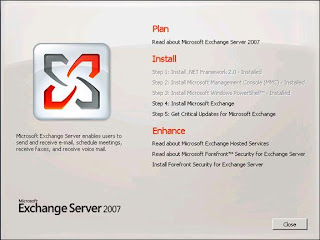
  • now, the following "Auto Launch" screen will appear immediatly upong inserting the Exchagne Media CD in the Server's CD Drive, If the Autorun screen of Exchange didn't appear, you can access it by double-clicking on setup.exe on the Exchange Media CD:
  • Now, from the above screen, you can see that the first activated step is step # 4 Install Microsoft Exchange, which means that all Exchange 2007 Software Prerequisits have been installed on that server, if any step (from 1 till 3) was active, then you can't proceed with step # 4 untill you finish all the above 3 steps. he, I installed all the Exchange prerequists for Exchange 2007, and now i can start with Step # 4 - Install Microsoft Exchange. if you recieved the same screen, then go and ahead and start the installation.
  • In the Next screen, An Introduction to Exchange Server 2007 appears, click on Next.

  • Next screen will be the license agreement (EULA). after finishing reading the teams and conditions mentioned within this Agreement (which i doubt you would read it :) ), click on Accept.


  • Next is the "Error Reporting" Screen. Error reporting will allow your Exchange Server to send error reports to Microsoft in case any problem occurred to your exchange. If you would like to enable error reporting service on your Exchange Server, then select "Yes"; otherwise click "No". then , click "Next".


  • In the next screen, "Installation Type" screen, there are two options, the "Typical Exchange Server Installation" and the "Custom Exchange Server Installation" buttons. the default selection is Typical Installation which includes (Hub Transport, Client Access and Mailbox roles, and Management Tools). If you select "Typical Installation" then the three default Server Roles will be selected. to manually select these roles, then click on Custom Installation, from there you can choose any role from the avialable selection. here i will choose the typical installation. To change the default installation path for Exchange, click "Browse" and select a path. By default it will be installed in "[Program Files directory]\Microsoft\Exchange Server". To continue, click "Next".


    If "Custom Exchange Server Installation" was selected then the following screen will appear. Click on the checkbox beside each server role name to install the corresponding Exchange Server role. The Mailbox, Client Access, Hub Transport, and Unified Messaging server role can be installed together if on single server. However, please note that each of the Edge Transport Server Role, Active Clustered Mailbox Role, and Passive Clustered Mailbox Role CANNOT be installed with any of the server roles on the same Exchange server. The Management Tools are installed with any selected role, or can be installed independently for an "Admin Only" configuration.


  • Next page is "Client Settings" and this page will be presented if the Mailbox role has been selected for installation and if this will be the first Exchange Server in the organization. It is asking if you want public folders enabled for any Outlook 2003 or Entourage clients in your organization. Select "Yes" if you have ealier outlook versions or "No" if you have only 2007 version of outlook, then click "Next" to continue.


  • After that the "Readiness Check" screen will appear and Exchange Setup will start to check if the server is ready for Exchange 2007 or not by checking all the prerequisits of Exchange 2007 whether they were deployed on the server or not. the check process will be ran against all server roles that been selected during the setup wizard. Please wait for the checks to complete then click "Install" to start the installation. If there are errors, a detailed error message will be given on how to resolve the problem. If there are warnings, please take note and take appropriate action. The same prerequisite may show up more than once across the server roles (such as a required software update), but fixing the problem will satisfy the prerequisite. Note: if you wish to collapse the information area under each role, click once on the double up arrows on the right. To expand the information, click on that arrow (double down arrows) again.


  • Then the installation of Exchange 2007 on this server will start. The installation progress screen will appear and will be updated as the installation continues to each step. The installation can take a number of minutes to complete while at this stage. After everything is done.

  • On the Completion Screen click Finish and the Exchange Management Console will open if the checkbox at the bottom remains checked. After this point, the auto launch screen is again presented and you should continue to "Step 5: Get critical updates for Microsoft Exchange" to get the latest updates

When you click on Finish, the Exchange Management Console will open to start administering your Exchange Environements. in the upcoming articles i will cover you to update your Exchange Server 2007 (Different Type of Installation including Typical, CCR, SCC, and LCR) to Service Pack 1, so stay tuned.

Tuesday, January 1, 2008

How to Install MS Exchange Server 2007 on a new Server under a New Active Directory Domain/Forest - Part I

Now after I covered the installation of Windows Server 2003 on a new server and promiting this new server to the first Domain Controller of a new Active Directory Forest/Domain, now its the time to install Exchange Server 2007 on a new server.

In this Article, I will talk about the actual deployment steps and procedures that you will use to install a new Exchange Server 2007 server with the Three Main Server Roles "Hub Transport Server, Client Access Server and Mailbox Server Roles" on a single server using the GUI installation tools. I will show you how to Prepare your Active Directory for Exchage Server 2007 Installation, and how to check the pre-requisites using a prerequisites scanner engine built into the Exchange 2007 installation program. Now I will start in Preparing the Active Directory Environment in order to host Exchange Organization.


How to Raise your Windows 2003 - Domain Functional Level to "Windows 2000 Mode"

As part of the Infrastructure Requirements for Exchange Server 2007, the Domain Functional Level for your Active Directroy has to be in "Windows 2000 Native Mode" or higher, so first you have to raise your Windows 2003 Domain Level to Windows 2000 Native Mode.

To raise the Domain Functional Level to Windows 2000 follow these steps:

Note: This is a one way process, it can't be changed back, so DO NOT raise the domain functional level if you have, or will have, any Windows NT 4.0 or earlier domain controllers. As soon as the domain functional level is raised to Windows 2000 native or Windows Server 2003, it cannot be changed back to a Windows 2000 mixed domain.

  1. Log on to your Domain Controller with domain administrator credentials.
  2. Click Start, point to Administrative Tools, and then click Active Directory Users and Computers.
  3. In the console tree, right-click the domain that appears under Active Directory Users and Computers (in my example it would be "alankar.com" , and then click Raise Domain Functional Level.

  4. Under Select an available domain functional level, Click "Windows 2000 native", and then click Raise to raise the domain functional level to Windows 2000 native.

  5. Read the "Warning" message that appears after you click the "Raise" button. it says that this process cannot be changed after you confirm this message. So you have to be careful in your decision. If you don't have and will never have Windows NT4.0 Domain Controllers (PDC or BDC) under this domain, then click Ok, but if you are planning to have NT4.0 PDC or BDC under this domain, then DO NOT proceed in this process. now, i assume that you are sure that you will never have NT4.0 under your domain, so click OK.


  6. Afer your domain was raised successfully to Windows 2000 Native Mode, you will get the following confirmation message box for the successful raise of your domain, click OK.


  7. After the successful Raise of your Domain, you will see the immediate affect of this raise on the same box shown in Step # 4. Check the Domain Level under "Current Domain Functional Level" it should show "Windows 2000 Native" as shown below:


Prepare Active Directory Schema for Exchange 2007 Attributes and Classis


Now, after the Domain Level has been raised successfully to Windows 2000 Native Mode, we can proceed with the next step of Exchange 2007 Installation which is "Updating the Active Directory schema with Exchange 2007 Attributes and Classes. this process is the same process we used to do with Exchange Server 2003 installation, if you remember, that we used to run Exchange 2003 Setup with "/ForestPrep" switch against the Active Directory Schema to extend the schema with Exchange Server 2003 Attributes and Classis, with Exchange 2007, still its the same process, but with different Switches. here are the steps to Extend Active Directory Schema for Exchange 2007 Attributes and Classis:

  1. Logon to the server where you will install Exchange Server 2007 with an domain account that is member of "Schema Admins" group. to make sure that you are loggin by the correct user, then logon by the Domain Administrator Account "Administrator".
  2. Put your Exchange Server 2007 Media DVD on the CD Room, and go to Command Prompt screen. go to Run ---> cmd.exe, then click Enter.
  3. Change the path in the command promt to your Exchange 2007 Media Drive.
  4. run the following command : setup.com /PrepareSchema or setup.com /PS


  5. after you click on Enter, the Exchange Setup will connect to your Domain Controller that host the Schema Master Role and updates or extend the AD Schema with Exchange Attributes.


  6. Make sure that the /PrepareSchema Commands Completed successfully.
  7. Allow time for replication to allow the Schema Master DC replicates the changes to all DC's under your domain, offcourse the time depends on how many Domain Controllers under your Domain/Forest, the number of DC's you have, and the connectin speed between all the DC's.

Now, Part 1 of this article has finished, i will continue in the coming parts of this serries , so stay tuned.

Friday, December 28, 2007

How to Promote your first Windows 2003 Server to become the First Domain Controller of Your Domain

This article will talk about deploying and configuring the first Active Directory Server (Domain Controller) on Hardware Server that runs Microsoft Windows Server 2003 (Standard or Enterprise). In the previous articles we talked about building and preparing your hardware server with Windows Server 2003, and the second article I listed the requirements that you must meet before you start with the installation of Active Directory. Here are the links for the previous articles:


How to Install Windows Server 2003 (Standard or Enterprise Editions) on a New Server

Requirements for Active Directory Installation on the First Domain Controller in your Domain


Now, when your server is ready and the active directory prerequisites have been met, we can start with the Active Directory promotion of your first Domain Controller, here are the steps:
  1. Make sure that this server has a Static IP Address, not Dynamic.
  2. Make Sure that the Drives which will use to host Active Directory Database and Log files are formatted as NTFS Partition and ready to be used.
  3. Logon to the server with an account that has Local Administrator Permission.
  4. From Run command, run the following command: DCPROMO


  5. The Active Directory Installation Wizard will start. Click on Next

  6. On “Operating System Compatibility” Screen, click on Next.


  7. On the “Domain Controller Type” choose first option “Domain Controller for a New Domain”, and then click on Next.


  8. On “Create New Domain” screen, choose First Option “Domain in a new Forest”, and then click on Next.


  9. In “New Domain Screen” write the Fully Qualified Domain Name – FQDN of the Active Directory Domain, here I will use “alankar.com” Domain.


  10. In “NetBIOS Domain Name”, accept the Default Name and click next. By default this name will be the first Name Space of your domain, in our example, will be “ALANKAR”, it is recommended to keep this default name and not to change it, but if you want to change it you can.

  11. In “Database and Log Folders” Screen, the default location of AD Database and Logs will be Under Windows Directory hosted in C Drive, but this does not mean that you can’t change it, so if you plan to keep AD Database and Logs on a separate Drive on your server, so click on browse and choose the new location on the new Drive for your AD Database and Logs. But if you are planning not to change the default location of the Database and Logs of your Active Directory, then keep the default location, and then click on Next.


  12. In “Shared System Volume” Screen, also if you are planning to keep your System Volume Files (Group Policy and Scripts) of your Active Directory on a separate Drive then change the location of the SYSVOL Folder location by clicking on Browse tab and choose the new location. If you don’t want to change the default location of this folder, just simply click on Next.


  13. In “DNS Registration Diagnostics” Screen, choose Second Option to allow Windows Install and Configure DNS Services required for Active Directory on the Server. Click on Next.


  14. In “Permission” Screen, As explained in this screen, first option is compatible with pre-Windows 2000 Server Operating Systems (which is Windows NT4.0), but the second option is compatible with only Windows 2000 and 2003 server operating system. So if you are not planning to have NT4.0 Servers under your new domain, then choose second option. Make your decision, and when you finish, Click on Next.


  15. In the “Directory Services Restore Mode Administrator Password”, enter the Restore Mode Password, restore mode option is used only in the Directory Service Restore Mode option used to restore Active Directory. This Password should be easy to remember.


  16. At the Summary Screen, review the settings and options that been selected during the Active Directory Wizard, and if these options and settings are correct, proceed with Active Directory Installation by clicking on Next.

  17. Installation of Active Directory on your new Server will start, and the Server will be the first Domain Controller under ALANKAR.COM Forest/Domain.


  18. During the Active Directory Promotion, the System will prompt you to provide Windows Server 2003 Media CD to copy some files requires for DNS Service. Make sure that you provided the correct Windows Server version for that server.


  19. When Active Directory Wizard finishes the installation and Promotion of your server to Domain Controller, the following screen will appear. Click on Finish.


  20. Click on “Restart Now” to restart the Server
Note: After the server restarted successfully, logon to your Domain (in this case, ALANKAR Domain) and open the Event Viewer of the server and make sure that you don’t see any critical Error Message, and that you can open Active Directory Users and Computers Console where you can see the whole ALANKAR.COM Domain Structure.

Requirements for Active Directory Installation on the First Domain Controller in your Domain

Active Directory installation has certain requirements and prerequisites that you have to meet and fulfill before you start the installation of Active Directory on your First Domain Controller.

These requirements are:


  • NTFS Partition

    You must have at least one partition formatted as NTFS, preferably the partition you used to install Windows on which is C Drive, or if you decided to install Active Directory Database on a drive (Faster Drive) other than C Drive, then this Drive has to be NTFS Formatted Partition. Normally you choose to install or host Active Directory Database on another drive if you are seeking for best performance.

    To convert a partition (C Drive) to NTFS type the following command in the command prompt window:

    Convert c:/fs:ntfs

  • Enough Free Space

    At least 250 MB of free space on the partition you plan to install AD on as minimum recommendation, but Of course you need more than 250 MB if you plan to create more users, groups and various Active Directory Objects.

  • Administrator Account

    Since you are installing the First Domain Controller of your newly prepared server then the logged on user (by default Administrator) needs to have administrative access locally on the server or needs to be member of Local Administrators Group.

  • Operating System

    Active Directory only can be installed on Windows 2000 Server or Windows Server 2003 (all the editions like Standard, Enterprise, and Datacenter). So don’t try to install Active Directory on Windows 2000 Professional or Windows XP or Windows Vista.

  • Supported Network Card - NIC

    In order to start communicating with Active Directory and use the Domain from your client, then your Domain Controller should have Network Card, and your PC as well, I know this is a standard requirements for all new servers, but just in case you forget that so I am reminding you here about the necessity of having Network Card installed and fixed into your server before installing Active Directory on it. From other hand, if you don’t have any Network Card installed or detected by your server, then you will NOT be able to install Active Directory on the server.

  • Dedicated (Fixed) IP Address

    You need a dedicated IP address to install Active Directory. If you do not use a dedicated IP address, DNS registrations may not work and Active Directory functionality may be lost. The Active Directory domain controller should point to itself (its own IP address) in the DNS server list so it will point to itself when registering SRV records and when querying the DNS database.

    To configure your IP configuration, use the following steps:
  1. Right-click My Network Places and then click Properties.

  2. Right-click Local Area Connection and then click Properties.

  3. Click Internet Protocol (TCP/IP), and then click Properties

  4. Under “Use the Following IP Address” section, type in a static IP address, subnet mask, and gateway address (Gateway is optional, based on your network configuration, but this settings will not affect AD installation), Enter the server's IP address in the Preferred DNS server box:
  5. Then click on OK to save the TCP/IP Settings.
  6. Finally click OK to close the Local Area Connection Property Page.
  • Active Network Connection


    Active Directory installation requires an active network connection. When you attempt to use Dcpromo.exe to promote a Windows 2000 Server or Windows Server 2003 - based computer to a domain controller, you may receive the following error message:

    Active Directory Installation Failed
    The operation failed with the following error
    The network location cannot be reached. For further information about network troubleshooting, see Windows Help.

    This problem can occur if the network cable is not plugged into a hub or other network device. To resolve this problem, connect the network cable of the server into a hub or switch. If network connectivity is not available for any reason and this is the first domain controller in a new forest, you can finish the installation of Active Directory on your First Domain Controller by installing Microsoft Loopback Adapter, but using the Loopback Adapter will not allow any communication between this Domain Controller and the rest of the network.

  • DNS Service and Configuration

    Active Directory depends on DNS Server that supports the new zone type (which is the Integrated Zone). By default, when you install Active Directory on the first Domain Controller and you didn’t install and configure the DNS Service on this domain controller, then wizard will detect this issue and will offer you to install and configure DNS Service on this server on behalf of you, so let Active Directory install the DNS Server on the first domain controller and configures the Active Directory Zones for you during the Installation Wizard of Active Directory.

  • A Domain name (FQDN and NetBIOS Names)

    You need to have a Fully Qualified Domain Name for your Active Directory Forest and Domain Infrastructure. If you were planning to have a Single Name Space for your domain, then its NOT recommended at all, you need to have a Fully Qualified Domain Name – FQDN for your domain. For example, a domain called “Domain” is not recommended in AD installation, so, you need to consider to call it “Domain.com” for example.

Saturday, December 8, 2007

How to Install Windows Server 2003 (Standard or Enterprise Edition) on a new Server

Introduction

This article will talk about deploying and installing Microsoft Windows Server 2003 (Standard or Enterprise) on a new Server. This step by step document contains screen shots of the installation process of Windows Operating System which will takes you through the complete process of the installation. The installation steps of the Standard and Enterprise Editions are the same no difference in the installation process of the two versions of Windows Server 2003, the difference is in the features only.


Hardware Requirements for Windows Server 2003

As minimum requirements for Windows Server 2003, An Intel processor–based server running Windows Server 2003 with at least 128 megabytes (MB) of RAM can be used to run Windows Server 2003, but as your organization goes bigger and your users are increased, then you should consider bringing a powerful server with latest Processor Technology (Dual Core) and high processor cache (2MB or 4MB), also with at least 512 MB Memory. Microsoft also recommends that the server should have several gigabytes of disk storage (at Least Two SCSI Disks). In addition, servers should be equipped with high-speed network interface cards (Minimum 100 MBps).

Server Disks and Partitions

The partition in which you are going to deploy the Windows 2003 Operating System should be formatted as NTFS not FAT. By default the main partition (C Drive) will host the Windows Operating System and Files, but if you plan to host this folder and files on another Partition/Disk, then you have to make sure that this drive is formatted as NTFS as well.

Install MS Windows Server 2003 on your Server

If your server was purchased from a known vender, as I mentioned above, like HP, DELL, IBM, etc) then this server will come with a complete kit to prepare your server for Microsoft Various Operating Systems installation, and other operating systems like Linux, Unix, MAC, etc. You have to use this kit to prepare your server with all the configuration and drivers for the operating system that you chose. Here I will not discuss these steps, in order to be familiar with these steps, please consult your hardware vender. In this article, I will list the steps to install Windows Server 2003 directory from the Media you purchased from Microsoft Software Partner.

In order to install Windows Server 2003 on your Server, here are the steps:

  1. To begin the installation procedure, boot directly from the Windows Server 2003 CD. Your CD-ROM must support bootable CDs. (When you configure partitions and format drives, all data on the server hard drive/Disk will be destroyed).

  2. Make sure that you configured your Server BIOS to make the first Boot Drive is the CD/DVD ROM Drive, to be able to boot from the CD/DVD Drive.

  3. During the boot, if you were prompted to “Press Any Key to boot from CD” then press any key, you can press the Enter Key or the Space Bar Key for simplicity, then the Windows Installation Process begins.


  4. On the Welcome to Setup screen, press Enter


  5. Review the License agreement in the next screen and if you agree on all the terms and conditions of this agreement, press F8


  6. The next screen shows the existing disks and partitioned space on your server. Here I used a server with Mirrored 2 x 146 GB Disks, so the available unpartitioned space is 130 GB where I will create two partitions only, first partition which will have 20 GB space as C Partition and second partition which will have the remaining space as E Drive.


    To create the first partition from the above screen, Press C.

  7. In the Size Partition specify the size of the new partition, here in our example I will create a partition of 20 GB or 20000 MB and will be used as C Drive, as appears on the next screen. Click Enter to create the new partition.


  8. You will be returned to the previous screen to see the new created partition, and how much is remaining for unpartitioned space available for the new partitions.
  9. Select the unpartitioned space available to create a new partition (E Drive) with the remaining space available.
  10. Your Disks partitions will appear like this:


  11. Choose C Drive to install Windows Server 2003 on, click Enter.

  12. The next screen will give you options on how you want to format Operating System Partition (C Drive). Choose first option which will format C Drive as NTFS. Click on Enter when you finish the selection.

  13. The Setup will start formatting the Partition based on your selection, which is Quick NTFS Format.


  14. After formatting C Drive, Windows Setup will start copying the setup files to the Windows Installation Folder created locally on the formatted partition (C Drive).


  15. Now, after Setup Process copies the Windows Installation Files locally to the Windows Installation Folder, the server will restart to start the Windows Installation and Configuration Process. Please note that the Server will be restarted Two Times to finish the installation process, this is the first restart, and the second restart will occur after finalizing the configuration of Windows.


  16. During restart of your server you will get the following Windows Server 2003 Startup Screen.


  17. When the server finishes loading the Windows Setup Files, it will start the Windows Installation and Configuration Wizard.


  18. The First Screen after the Windows Installation Wizard is the Regional and Language Settings.


  19. Since we are using an English Version of Windows, then the default language will be English, if you want to install additional support language during setup (like Arabic Language Support) click on “Customized”, then from the tabs choose “Language” tab. Under “supplemental language support” tab click on “Install Files for complex script and right-to-left Languages (Including Thai)”


  20. When you choose to install additional language, you will be prompted for a space confirmation message, click Ok on you have available space for this additional files (only 10 MB or more is required).


  21. After you finish installing the additional language, click on Next from the Regional and Language settings screen.

  22. The next screen will be the Personalize Screen, where you provide information about the Organization that this Windows Server will operate under its network. In this article, this server will operate under my personal organization which is “Al-Ankar Organization”. Click on Next when you finish feeding up the required information.


  23. In the next screen you need to provide the Windows Server 2003 Product Key, this key can be found in the back of the Windows CD Cover or provided by separate Licensing Certificate by the Media and Licensing Provider. Click on Next when you finish from typing in the Product Key.

  24. The Next Screen, In the Licensing Modes dialog box, selects the appropriate licensing mode for your organization, and then click Next. If you are not sure, just keep the default and click on Next.


  25. In the Computer Name and Administrator Password dialog box, type the new computer name in the computer name box, and choose a password for the “Administrator” Local Account, and then click Next.


  26. In the Date and Time Settings dialog box, correct the current date and time if necessary based on your country or region date and time, and then click Next.


  27. Now, Windows will start configuring the server based on the information you provided in the previous screens.


  28. Now, the Windows Setup will start the networking components installation and configuration on the server. The first networking configuration screen will be the TCP/IP Configuration of the Server Network Card. If you know the IP Address that this server will host, then click on custom settings and type in the IP Configuration (IP Address, Subnet Mask, Gateway, Primary DNS, Secondary DNS, etc). if you don’t have such information, then keep the default selection which is “Typical Settings” and click on Next.


  29. The Next Networking Configuration Screen will be “Workgroup or Computer Domain”. Now, if this server is the first Server under your network then you don’t have a domain to join this server to, so keep the default selection which is “Workgroup” and keep the name of this workgroup as the default suggested name which is “Workgroup” and click on next. If you already configured your TCP/IP Settings or you have already Domain under your Network and you have a DHCP Server that leases IP’s to your computers, and you want to join this new server under your existing domain, then you can specify your domain by clicking on “Yes, make this computer a member of the following Domain:” and then specify the domain that you want to join this new server to.


  30. Now, Windows will configuration the Networking components based on your selection on the Networking Configuration screens shown above.


  31. The Windows Setup will start completing configuration and installation of Windows on the Server, and when it will finish, it will restart automatically and takes you to the new installed Windows Server 2003 Logon Screen to start working and browsing the new Server features.


  32. Finally, this the Logon Screen that you will get when you restart the server after it finishes the installation of your Windows Server 2003 Server.


  33. Then you can click on “Ctrl-Alt-Del” on your keyboard, and provide the logon credential specified during the setup, which are:

    User: administrator
    Password: XXXXXXXXX (here I used the following password: P@ssw0rd)

  34. Now, you need to connect this server to the internet and update it with the latest Security Patches and Service Packs.

Conclusion

The above article went through the details steps on how to install Windows Server 2003 on a new server. The coming articles will talk about how to promote this new server to be the First Domain Controller under your production or laboratory network. So stay tuned.

Wednesday, December 5, 2007

New Release for "Microsoft Forefront Security for Exchange Server with Service Pack 1"

Microsoft has release a new version of ForeFront Security for Exchagne (FSE) which supports the new Release of Exchange Server 2007 Service Pack 1. so this new release will work with Exchange Server 2007 SP1 Environment. Also this release supports the new Windows Server 2008 Operatin System which will be released hopefully first Quarter of 2008, as I far i know.

The new release of ForeFront Security for Exchange SP1 (FSE) includes also new enhancments for content filtering and manageability. These enhancements include:

  • Seamless support for organizations running IPv6.
  • Improved content filtering with installable keyword lists that can be used to eliminate email containing profanity in eleven supported languages.
  • Improved integration with Microsoft System Center Operations Manager through new management packs that allow administrators to proactively monitor the state of their Exchange 2007 protection.
  • Increased flexibility for scanning or blocking high compression zip files and RAR archives.

Some tips for Installation and Upgrade to the new ForeFront Security for Exchange Server 2007 SP1:

  • Forefront Security for Exchange users who are running Exchange 2007 RTM and wish to upgrade to Exchange 2007 SP1 must first upgrade to Forefront Security for Exchange SP1.
  • If you upgraded ForeFront Security for Exchange to the new SP1 Release then you must stop all ForeFront services before upgrading Exchange Server 2007 to SP1 "Dont Forget That".

Now go and Download New Release of "Microsoft Forefront Security for Exchange Server with Service Pack 1"

MS Exchange Server 2007 SP1 Help File is availabe for Download

This download contains a standalone version (Offline Copy) of Microsoft Exchange Server 2007 SP1 Help. The Exchange Server 2007 SP1 Help can help you in the day-to-day administration of Exchange. Use this information to guide you through Exchange Server 2007 SP1 features, tasks, and administration procedures
For all Exchange Administrators/Implementors/Consultant who likes to have an offline copy of the Technical Inofrmation about Exchange Server 2007 SP1 which covers everything about Exchange Server 2007 RTM and SP1 Versions they must download this Help File which, I personally consider it, the Guide for all Exchange Administrators / Implementors / Developers / Consultants / Mail Architects / and even Business Makers. this help file contains all the information about the new features as well as a detailed technical information about Exchange Server 2007 Installation / Deployment / Transitioing with Older Exchagne Versions ( 2000 and 2003) / Configuration / Disaster Recover / High Availability / Troubleshooting / Management Shell Command / and Development. in other words, this file is the "MS Exchange Server 2007 from A - to - Z". you will enjoy reading and dealing with this help file, from the way its organized and structured, you will easly find the answer of your questions inside this file.

Saturday, December 1, 2007

Microsoft Exchange Server 2007 Service Pack 1 (SP1) has been released Finally

To everybody who were waiting the Final Release of the First Service Pack of the greatest product ever which is MS Exchange Server 2007 RTM Version, I want to tell them that the waiting time is over :) :) , Microsoft has finally released and published the Service Pack 1 for Exchange 2007 for both 32-Bit Version ( which is used non-production network) and for 64-Bit Version (which is used in the production network).
Exchange Server 2007 SP1 conatains several new features and improvements will extend the Anywhere Access capabilities of Exchange Server 2007 to help make employees more productive on whatever device they’re using, provide additional Operational Efficiency tools for administrators seeking a streamlined management and deployment experience, and enable advanced Built-in Protection for more robust high availability and compliance scenarios.
To download the Service Pack 1 for Exchange Server 2007 for both 32-Bit and 64-Bit , here is the link for the two files
To Download Exchange Server 2007 - SP1 Release Notes, here is the link:
to start using the SP1, I advice you all to deploy it first on your testing environment, either using 32-Bit version before you deploy the 64-Bit on your production server to get familiar with the deployment and installation steps. if your testing environment built on 64-Bit Servers and you have already deployed the 64-Bit RMT version of Exchange on it, then use the 64-Bit version of SP1 on this testing environment also before deploy it on your production network.
Good Luck for your Testing, and take care while deploying it under the Production Network.

Sunday, November 25, 2007

Hareware and Software Requirements for Installing MS Exchange Server 2007

There are some requirements for MS Exchange Server 2007 in order to be installed successfully. Without these prerequisites and requirements the installation will not continue. These requirements were covered in my previous article, but now I will brief these requirements again for the people who didn’t get the change to check my previous blog articles:

1. Hardware Requirements

Processor:
  • Intel Extended Memory 64 Technology (Intel EM64T). or
  • AMD Opteron or AMD Athlon 64 processor, which supports AMD64 platform.

Memory:

  • 2GB of RAM per server plus 5MB per user minimum

Disk space:

  • At least 1.2GB on the hard disk where Exchange Server 2007 will be installed.
  • 200MB on the system drive

Paging file size:

  • Page File Size should be equal to the amount of RAM in the Server plus 10 MB

Note:

  • That Inter Itanium IA64 Processors are NOT SUPPORTED.
  • These hardware requirements from Microsoft are the bare minimum and should not be used in best-practice scenarios. In addition, hardware requirements can change because of features and functionality required by the company, for example, the implementation of Unified Messaging voice mail services or clustering on an Exchange 2007 server can require more memory.

    2. Infrastructure Requirements

    · The Schema Master Domain Controller must have Windows Server 2003 SP 1 or Windows Server 2003 R2 Installed.
    · Global Catalog Server used by Exchange Server 2007 must be running Windows Server 2003 SP 1 or Windows Server 2003 R2 Installed.
    · Active Directory Domain Functional Level must be Windows 2000 Native or higher for all domains in the Active Directory Forest where you will install Exchange Server 2007 or have mailbox-enabled users.
    · Forest Functional Level must be Windows Server 2003 Functional Level.
    · If you are deploying MS Exchange 2007 on an Active Directory Forest that already contains Exchange Organization (2000 or 2003), then this Exchange Organization must be in Native Mode which means “No Microsoft Exchange Server 5.5 Servers” should exists under this Exchange Organization.
    · Domain Name System (DNS) is configured correctly in the Active Directory Forest.
    · Active Directory is prepared for the Exchange Server 2007.
    · WINS is not required anymore for Exchange Server 2007 Installation, operation and management.
    · All Exchange Server 2007 which will deployed under Active Directory Forest needs to be member “Joined” of this Active Directory Forest, so Hub Transport, Client Access, Mailbox, and Unified Messaging (UM) Servers needs to be running on Member Servers. Well these roles can run on Domain Controllers, but its not recommended at all. The only exception to this condition is the Exchange Server 2007 – Edge Transport Server Role, this server role CAN NOT run on Server which is joined to Active Directory Forest. This server role was designed to work on a Stand Alone Server located in the DMZ Area (This server will act as SMTP Gateway Server for all Internet-Facing Email Connections from the external world).

    3. System Requirements

    Exchange 2007 has the following System Requirements which needs to be installed on the server that will run any Exchange Server 2007 Roles:

    · Windows Server 2003 – 64-Bit (or Windows Server 2003 R2 – 64-Bit) as Operating System.
    · .Net Framework 2.0
    · Microsoft Management Console (MMC) v 3.0
    · Microsoft PowerShell v 1.0.
    · Windows Security Updates.

    For each and every Exchange Server 2007 which will be deployed under the Production network, all the above software and updates must be installed prior to install Exchange Server 2007. You will not be able to proceed with Exchange Server 2007 Installation on any server if one of the system requirements was not installed.

Monday, October 15, 2007

General Recommendations for FSMO Roles Placement

  • Place the RID and PDC emulator roles on the same domain controller. Good communication from the PDC to the RID master is desirable as down level clients and applications target the PDC, making it a large consumer of RIDs.

  • As a general rule, the infrastructure master should be located on a non global catalog server that has a direct connection object to some global catalog in the forest, preferably in the same Active Directory site. Because the global catalog server holds a partial replica of every object in the forest, the infrastructure master, if placed on a global catalog server, will never update anything, because it does not contain any references to objects that it does not hold. Two exceptions to the "do not place the infrastructure master on a global catalog server" rule are:


    1. Single domain forest: In a forest that contains a single Active Directory domain, there are no phantoms, and so the infrastructure master has no work to do. The infrastructure master may be placed on any domain controller in the domain, regardless of whether that domain controller hosts the global catalog or not.


    2. Multi domain forest: Where every domain controller in a domain holds the global catalog: If every domain controller in a domain that is part of a multi domain forest also hosts the global catalog, there are no phantoms or work for the infrastructure master to do. The infrastructure master may be put on any domain controller in that domain.

  • At the forest level, the schema master and domain naming master roles should be placed on the same domain controller as they are rarely used and should be tightly controlled. Additionally, the domain naming master FSMO should also be a global catalog server. Certain operations that use the domain naming master, such as creating grand-child domains, will fail if this is not the case.


    Note: If the Schema Master or RID role is seized, it is critical that the original server never be restored and brought back to the forest. To do so may cause Schema corruption and data inconsistency.

  • In order to facilitate faster user authentication, the PDC emulator should be placed in a location that includes a large number of users from that domain. In addition, ensure that the location is well connected to other locations to minimize replication latency.


What is FSMO (Flexible Single-Master Operation) Roles?

The Microsoft Windows Active Directory is the central repository in which all objects in an enterprise and their respective attributes are stored. It is a hierarchical, multi-master enabled database, capable of storing millions of objects. Because it is multi-master, changes to the database can be processed at any given domain controller (DC) in the enterprise regardless of whether the DC is connected or disconnected from the network. Because an Active Directory role is not bound to a single DC, it is referred to as a Flexible Single Master Operation (FSMO) Role.

Currently in Windows 2000 and Windows Server 2003 there are Five FSMO roles, which are owned by the First Domain Controller installed into the Forest, any new domain installed under the forest will have Three (Domain-Level) FSMO Roles. These roles break down into Two Forest-Level roles and Three domain-level roles.
The two forest-level roles are:
  • The schema master, which governs changes to the schema, controls all updates and modifications to the Active Directory Schema. To update the schema of a forest, you must have access to the Schema Master; therefore you need to be member of Schema Admins Group in Active Directory. There can be only one schema master in the whole forest.
  • The domain naming master, which adds domains to and removes domains from the forest, controls the addition or removal of domains in the forest. There can be only one domain naming master in the whole forest. You need to be member of Enterprise Admins Group in order to gain access on the Domain Naming Master Role Functionality.

The three domain-level roles for Active Directory domain controllers are:

  • The primary domain controller (PDC) emulator, which processes any replication requests from Microsoft Windows NT 4.0 backup domain controllers (BDCs) and processes all password updates from clients not running the Active Directory client software. In addition, the PDC emulator is checked on an authentication failure to see if a password has been changed but has not had a chance to replicate to all the domain controllers at that point in time.
  • The Relative Identifier (RID) master, which allocates RIDs to all domain controllers to ensure that all security principles are unique.
  • The infrastructure master for a given domain, which maintains a list of the security principals from other domains that are members of groups within its domain

Windows Server 2008: Web, Virtualization, Security, and a Solid Foundation for Your Business Workloads

Windows Server 2008, with its built-in Web and virtualization technologies, enables you to increase the reliability and flexibility of your server infrastructure. Learn how new virtualization tools, Web resources, and security enhancements can help you save time, reduce costs, and provide a platform for a dynamic and optimized datacenter. Powerful new tools, such as Internet Information Services 7.0 (IIS7), Server Manager, and Windows PowerShell, allow you to have more control over your servers and streamline web, configuration, and management tasks. Advanced security and reliability enhancements, such as Network Access Protection (NAP) and the Read-Only Domain Controller, harden the operating system and protect your server environment to ensure you have a solid foundation to build your business on.

Webcasts
Watch these 90-minute Windows Server 2008 webcasts and learn how your organization can leverage the enhancements in Windows Server 2008. Tune in for live webcasts and stream or download webcasts for on-demand viewing.

Virtual Labs
Try out Windows Server 2008 during a virtual lab. It's simple—no complex setup or installation is required. You get a downloadable manual and a 90-minute block of time for each module, and you can sign up for additional 90-minute blocks anytime.

Podcasts
Stream or download these TechNet audio podcasts onto your favorite podcast software or mobile device. These podcasts are free and do not require registration—just click, listen, and learn about Windows Server 2008.

Chats
Join an online, text-based question and answer session in real time from a chat room. This is your opportunity to interact with Microsoft experts on Windows Server 2008, provide feedback, and get answers to your tough questions.

Tuesday, October 2, 2007

Some Usefull Commands / Shortcuts for IT People

These Shortcuts or commands for the people who loves working with shortcuts like me, to be honost with you, i forgot where is the location of Active Directory Users and Computers :) , whenever i want to access it, i ran the shortcut :). which is much easier for me to remember.


Authorization Manager -----> AZMAN.MSC
Certificates snap-in -----> CERTMGR.MSC
Certification Services -----> CERTSRV.MSC
Certificate Templates -----> CERTTMPL.MSC
Index Service -----> CIADV.MSC
Command Prompt -----> CMD.EXE
Computer Management -----> COMPMGMT.MSC
Computer Management other than local computer ----> COMPMGMT.MSC /COMPUTER=COMPUTERNAME
Domain Controller Security Policy -----> DCPOL.MSC
promote server to a Domain Controller -----> DCPROMO.EXE
Device Manager -----> DEVMGMT.MSC
Disk Defragmenter -----> DFRG.MSC
Distributed File System -----> DFSGUI.MSC
DHCP Manager -----> DHCPMGMT.MSC
Disk Management -----> DISKMGMT.MSC
DNS Manager -----> DNSMGMT.MSC
Active Directory Domains & Trust -----> DOMAIN.MSC
Domain Security Policy -----> DOMPOL.MSC
Active Directory Users & Computers -----> DSA.MSC
To run Active Directory Users & Computers for a specific domain, if you have Root/Child Domain Structure. -----> DSA.MSC /DOMAIN=domainname
To run Active Directory Users & Computers from a specific Domain Controller
-----> DSA.MSC /SERVER=servername
Active Directory Sites & Services -----> DSSITE.MSC
Event Viewer -----> EVENTVWR.MSC
File Server Management -----> FILESVR.MSC
Shared Folders -----> FSMGMT.MSC
Fax Service Manager -----> FXSADMIN.MSC
local Group Policy Editor -----> GPEDIT.MSC
Look and edit the local Group Policy on a remote machine ----->GPEDIT.MSC /gpcomputer:
machinename
Internet Authentication Service -----> IAS.MSC
Internet Information Service (\Windows\system32\inetsrv) -----> IIS.MSC
Local Users and Groups -----> LUSRMGR.MSC
Microsoft Management Console -----> MMC.EXE
Hardware and software configuration information -----> MSINFO32.EXE
Remote Desktop Connection -----> MSTSC
Connect to a Console Session of a Server -----> MSTSC /Console
Network Diagnostics scans your system to gather information about your hardware, software, and network connections -----> netsh diag gui
Removable Storage Manager -----> NTMSMGR.MSC
Removable Storage Operator Request -----> NTMSOPRQ.MSC
Performance Monitor -----> PERFMON.MSC
Run Registry Editor -----> REGEDIT.EXE
starts the Remote Installation Service setup wizard -----> RISETUP.EXE
Routing and Remote Access -----> RRASMGMT.MSC
Resultant Set of Policy -----> RSOP.MSC
Local Security Policy -----> SECPOL.MSC
Service Configuration -----> SERVICES.MSC
Telephony -----> TAPIMGMT.MSC
Terminal Services -----> TSCC.MSC
Remote Desktop -----> TSMMC.MSC
Windows Management Instrument -----> WMICORE.EXE
Windows Managment Instrumentation -----> WMIMGMT.MSC

Sunday, July 22, 2007

Issue while configuring CCR with FSW (File Share Witness)

I want to share with you one of the issues that I found during Exchange Server 2007 – CCR Implementation. The issue appears while trying to configure FSW (File Share Witness) for the CCR, I don’t know if anyone faced this issue or problem before during his testing of CCR , but in case you didn’t , and you faced the same issue, I am sharing the solution of this issue with you in order to get over and solve this issue.

What is FSW ?


CCR uses the new File Share Witness feature introduced in an update to the Windows 2003 SP1 to act as the witness node instead of implementing a third node in the cluster for that purpose. Microsoft always recommends to install the FSW on one of the Hub servers. Also in site resilience implementation MS recommend to pre-provision another FSW on the Hub server that is hosted in the backup site and to be used to speed up the process of bringing up the backup site in case of disasters, and in order to facilitate such process of bringing up the other FSW and as a best practices MS recommend to use a CNAME record that is pointing to the server hosting the FSW so in case of disasters you just need to change the CNAME record to point to the other server hosting the standby FSW, easy task. so in general you will create the CNAME record in the DNS that will be pointing to the FSW server, and the issue is in this procedure.


So where is the problem???


sometimes when you try to use the CNAME record to populate the FSW or even to test the access to the FSW share using the CNAME you will got this error:

\\CName_Of_FSW

”You were not connected because a duplicate name exists on the network. Go to System in Control Panel to change the computer name and try again”


For example, if you deployed FSW on a HUB Server called (SRV-E2K7HUP-01) and you added a CNAME Record under the Active Directory called FSW, and you tried to access this CNAME from any of the CCR Nodes under this network, by running file://fsw/ from Rum Command, you will get the above mentioned error, and you will not be able to proceed, cause you need to configure Windows Cluster for the Two CCR Nodes with file://fsw.domain/MNS_FileShare_Name. and both CCR nodes needs to access this shared folder.

The Solution:


To solve this problem you have to disable the Strict Name Checking, from the Registry of the server that hosts the FSW (which is in our case the HUP Server SRV-E2K7HUP-01):


  • Start Registry Editor (Regedt32.exe).

  • Locate and click the following key in the registry: HKEY_LOCAL_MACHINE\System\CurrentControlSet\Services\LanmanServer\Parameters.

  • On the Edit menu, click Add Value, and then add the following registry value:

    Value name: DisableStrictNameChecking
    Data type: REG_DWORD
    Radix: DecimalValue: 1


  • You have to restart the server after that.

  • After Restarting the server make sure that you can access the C-Name of the FSW Hosting Server from the Run command on both CCR Nodes.


Please let me know if anyone faced this problem before and could solve it with the same above steps, and if you could not test this on a CCR Environment, please try it now, so you will be familiar with the steps shown above.

I hope the above information is useful to you, and hope to bring again another more issues which might help you with Exchange Server 2007.

Saturday, July 21, 2007

MS Exchange Server 2007 – Active Directory Preparation

How to Prepare Active Directory for Exchange Server 2007 Installation:

As we all know, Microsoft Exchange Server 2007 uses the Active Directory directory service to store and share directory information with Microsoft Windows, so without Active Directory directory Services, you will not be able to have any version of Exchange Server 200x installed under your network. If you have already Active Directory deployed under your production network and you want to deploy Exchange Server 2007, then continue reading this article to know how to prepare Active Directory Domain Infrastructure for Exchange Server 2007 Deployment and Installation, but If you have NOT yet deployed Active Directory, stop reading this article and go and deploy Active Directory First then come here again to continue : ).
In order to be able to install and deploy MS Exchange Server 2007 under your production or testing lab environment, you need to first prepare your Active Directory for Exchange Server 2007 before doing any kind of Exchange Server 2007 installation. Here I will try to explain how to prepare the Active Directory directory service and domains for installing Microsoft Exchange Server 2007.

As I mentioned on my previous article posted previously in my blog under the name of “Microsoft Exchange Server 2007 Requirements” you have to make sure that you have met all Exchange Server 2007 Hardware, Infrastructure, and System Requirements before you proceed with Active Directory Preparation Steps mentioned on this article.
Now, here are the steps required to prepare your Active Directory for Exchange Server 2007 Deployment and Installation under you Organization:

1. Prepare Exchange Legacy Permissions

If you have Exchange Server 2003 or Exchange 2000 Server running under your Exchange Organization, then open a Command Prompt window from , and then run one of the following commands:

  • To prepare legacy Exchange permissions in every domain in the forest that contains the Exchange Enterprise Servers and Exchange Domain Servers groups, run:

    setup /PrepareLegacyExchangePermissions

  • To prepare legacy Exchange permissions in a specific domain, run

    setup /PrepareLegacyExchangePermissions:

Permission required to run these commands:

  • To run this command to prepare every domain in the forest, you must be a member of the Enterprise Admins group.

  • To run this command to prepare a specific domain, you must be a member of the Exchange Organization Administrators group and you must be a member of the Domain Admins group in the domain that you will prepare.

  • If you do not specify a domain, the domain in which you run this command must be able to contact all domains in the forest.

  • After you run this command, you must wait for the permissions to replicate across your Exchange organization before continuing to the next step. If the permissions have not replicated, the Recipient Update Service on your Exchange Server 2003 or Exchange 2000 Server computers could fail. The amount of time that replication takes depends on your Active Directory site topology.

  • To track the progress of Active Directory replication, you can use the Active Directory Replication Monitor tool (replmon.exe), which is installed as part of the Microsoft Windows Server 2003 Support Tools Setup. By default, it is located at "%programfiles%\support tools\." Add your domain controllers as monitored servers so that you can track the progress of replication throughout the domain

2. Prepare Active Directory Schema

From a Command Prompt window, run the following command:

setup /PrepareSchema

Very Important Note: You must NOT run this command in a forest in which you do not plan to run setup /PrepareAD. If you do, the forest will be configured incorrectly, and you will not be able to read some attributes on user objects. So, if you didn’t follow the steps here correctly, Don’t Blame meJ.

Permission required to run these commands:

  • This command connects to the schema master and imports LDAP Data Interchange Format (LDIF) files to update the schema with Exchange 2007 specific attributes.

  • To run this command, you must be a member of the Schema Admins group and the Enterprise Admins group.

  • You must run this command on a computer that is in the same domain and the same Active Directory site as the schema master.

  • If you have not completed Step 1, setup /PrepareSchema will perform the PrepareLegacyExchangePermissions step. To complete the PrepareLegacyExchangePermissions step, the domain in which you run this command must be able to contact all domains in the forest.

  • After you run this command, you should wait for the changes to replicate across your Exchange organization before continuing to the next step. The amount of time this takes is dependent upon your Active Directory site topology.

3. Prepare Active Directory directory Service


From a Command Prompt window, run the following command:


setup /PrepareAD [/OrganizationName: ]

What does this command do ?

  • This command configures global Exchange objects in Active Directory, creates the Exchange Universal Security Groups (USGs) in the root domain, sets permissions on the Exchange configuration objects, and prepares the current domain. The global objects reside under the Exchange organization container. If no Exchange organization container exists, you must specify an organization name by using the /OrganizationName parameter. The organization container will be created with the name that you specify.

  • This command creates the Exchange 2007 Administrative Group called Exchange Administrative Group (FYDIBOHF23SPDLT). It also creates the Exchange 2007 Routing Group called Exchange Routing Group (DWBGZMFD01QNBJR).

    Very Important Notes:

    Do not move Exchange 2007 servers out of Exchange Administrative Group (FYDIBOHF23SPDLT) and do not rename Exchange Administrative Group (FYDIBOHF23SPDLT) by using a low-level directory editor. Exchange 2007 must use this administrative group for configuration data storage. We do not support moving Exchange 2007 servers out of Exchange Administrative Group (FYDIBOHF23SPDLT) or renaming of Exchange Administrative Group (FYDIBOHF23SPDLT).

    Do not move Exchange 2007 servers out of Exchange Routing Group (DWBGZMFD01QNBJR) and do not rename Exchange Routing Group (DWBGZMFD01QNBJR) by using a low-level directory editor. Exchange 2007 must use this routing group for communication with earlier versions of Exchange . We do not support moving Exchange 2007 servers out of Exchange Routing Group (DWBGZMFD01QNBJR) or renaming of Exchange Routing Group (DWBGZMFD01QNBJR).

  • This command creates the Unified Messaging Voice Originator contact in the Microsoft Exchange System Objects container of the root domain.

  • This command prepares the local domain for Exchange 2007.
    To run this command, you must be a member of the Enterprise Admins group.

  • If you have Exchange Server 2003 servers in your organization, you must be an Exchange Full Administrator to run this command.

  • The Exchange organization name cannot contain the following characters: ~ (tilde), ` (grave accent), ! (exclamation point), @ (at sign), # (number sign), $ (dollar sign), % (percent sign), ^ (caret), & (ampersand), * (asterisk), () (parentheses), _ (underscore), + (plus sign), = (equal sign), {} (braces), [] (brackets), (vertical bar), \ (backslash), : (colon), ; (semicolon)," (quotation mark), ' (apostrophe), <> (angle brackets), , (comma), . (period), ? (question mark), / (slash mark), White spaces at the beginning or end.

  • You must run this command on a computer that is in the same domain and the same Active Directory site as the Schema Master.

  • If you have not completed Step 1, setup /PrepareAD will perform the PrepareLegacyExchangePermissions step. To complete the PrepareLegacyExchangePermissions step, the domain in which you run this command must be able to contact all domains in the forest. If you are also a member of the Schema Admins group, and if you have not completed Step 2, setup /PrepareAD will perform the PrepareSchema step.

  • After you run this command, you should wait for the changes to replicate across your Exchange organization before continuing to the next step. The amount of time this takes is dependent upon your Active Directory site topology.

To verify that this step completed successfully, make sure that there is a new organizational unit (OU) in the root domain called Microsoft Exchange Security Groups. This OU should contain the following new Exchange USGs:

  • Exchange Organization Administrators
  • Exchange Recipient Administrators
  • Exchange View-Only Administrators
  • Exchange Servers
  • ExchangeLegacyInterop

When you install Exchange 2007, Setup will add the Exchange Organization Administrators USG as a member of the local Administrators group on the computer on which you are installing Exchange. Be aware that the local Administrators group on a domain controller has different permissions than the local Administrators group on a member server. If you install Exchange 2007 on a domain controller, the users who are Exchange Organization Administrators will have additional Windows permissions that they do not have if you install Exchange 2007 on a computer that is not a domain controller.

4. Prepare other specific Domains (if exists).

From a Command Prompt window, run one of the following commands:

  • Run setup /PrepareDomain to prepare the local domain. Note that you do not need to run this in the domain where you ran Step 3. Running setup /PrepareAD prepares the local domain.

  • Run setup /PrepareDomain: to prepare a specific domain.

  • Run setup /PrepareAllDomains to prepare all domains in your organization.

These commands perform the following tasks:

  • Sets permissions on the Domain container for the Exchange Servers, Exchange Organization Administrators, Authenticated Users, and Exchange Mailbox Administrators.

  • Creates the Microsoft Exchange System Objects container if it does not exist, and sets permissions on this container for the Exchange Servers, Exchange Organization Administrators, and Authenticated Users.

  • Creates a new domain global group in the current domain called Exchange Install Domain Servers. It also adds the Exchange Install Domain Servers group to the Exchange Servers USG in the root domain.

Note the following:

  • For domains that are in an Active Directory site other than the root domain, /PrepareDomain might fail with the following messages:

    "PrepareDomain for domain has partially completed. Because of the Active Directory site configuration, you must wait at least 15 minutes for replication to occur, and run PrepareDomain for again."

    "Active Directory operation failed on . This error is not retriable. Additional information: The specified group type is invalid.Active Directory response: 00002141: SvcErr: DSID-031A0FC0, problem 5003 (WILL_NOT_PERFORM), data 0The server cannot handle directory requests."

    If you see these messages, wait for or force Active Directory replication between this domain and the root domain, and then run /PrepareDomain again.
  • To run setup /PrepareAllDomains you must be a member of the Enterprise Admins group.

  • To run setup /PrepareDomain, if the domain that you are preparing existed before you ran setup /PrepareAD, you must be a member of the Domain Admins group in the domain. If the domain that you are preparing was created after you ran setup /PrepareAD, you must be a member of the Exchange Organization Administrators group, and you must be a member of the Domain Admins group in the domain.

To verify that this step completed successfully, confirm the following:

  • You have a new global group in the Microsoft Exchange System Objects container called Exchange Install Domain Servers. To view the Microsoft Exchange System Objects container in Active Directory Users and Computers, on the View menu, click Advanced Features. The Exchange Install Domain Servers group is used if you install Exchange 2007 in a child domain that is an Active Directory site other than the root domain. The creation of this group allows you to avoid installation errors if group memberships have not replicated to the child domain.

  • The Exchange Install Domain Servers group is a member of the Exchange Servers USG in the root domain.

  • On each domain controller in a domain in which you will install Exchange 2007, the Exchange Servers USG has permissions on the Domain Controller Security Policy\Local Policies\User Rights Assignment\Manage Auditing and Security Log policy.

Friday, July 20, 2007

Microsoft Exchange Server 2007 Requirements

Hardware Requirements

Microsoft maintains a list of minimum hardware requirements to install Exchange Server 2007. Microsoft recommends the following minimum hardware requirements for Exchange Server 2007:

Processor:

  • Intel Extended Memory 64 Technology (Intel EM64T). or
  • AMD Opteron or AMD Athlon 64 processor, which supports AMD64 platform.

Memory:

  • 2GB of RAM per server plus 5MB per user minimum.

Disk space:

  • At least 1.2GB on the hard disk where Exchange Server 2007 will be installed.
  • 200MB on the system drive

Paging file size:

  • Page File Size should be equal to the amount of RAM in the Server plus 10 MB.

Note:

  • That Inter Itanium IA64 Processors are NOT SUPPORTED.
  • These hardware requirements from Microsoft are the bare minimum and should not be used in best-practice scenarios. In addition, hardware requirements can change because of features and functionality required by the company, for example, the implementation of Unified Messaging voice mail services or clustering on an Exchange 2007 server can require more memory
Infrastructure Requirements for Exchange Server 2007

Exchange Server 2007 has the following infrastructure requirements:

  • The Schema Master Domain Controller must have Windows Server 2003 SP 1 or Windows Server 2003 R2 Installed.
  • Global Catalog Server used by Exchange Server 2007 must be running Windows Server 2003 SP 1 or Windows Server 2003 R2 Installed.
  • Active Directory Domain Functional Level must be Windows 2000 Native or higher for all domains in the Active Directory Forest where you will install Exchange Server 2007 or have mailbox-enabled users.
  • Forest Functional Level must be Windows Server 2003 Functional Level.
  • No Microsoft Exchange Server 5.5 Servers should be in the Exchange Organization and the Exchange Organization must be in Native Mode.
  • Domain Name System (DNS) is configured correctly in the Active Directory Forest.
  • Active Directory is prepared for the Exchange Server 2007.
  • WINS is not required anymore for Exchange Server 2007 Installation, operation and management.

Exchange Server 2007 System Requirements

Exchange 2007 has the following requirements for Installation:

  • Windows Server 2003 – 64-Bit (or Windows Server 2003 R2 – 64-Bit) as Operating System.
  • .Net Framework 2.0
  • Microsoft Management Console (MMC) v 3.0
  • Microsoft PowerShell v 1.0.
  • Windows Security Updates.
For each and every Exchange Server 2007 which will be deployed under the Production network, all the above software and updates must be installed prior to install Exchange Server 2007. You will not be able to proceed with Exchange Server 2007 Installation on any server if one of the system requirements was not installed on the server.

What's New in Microsoft Exchange Server 2007

Microsoft Exchange Server 2007 is the latest release of the messaging and communications system from Microsoft built on the Windows operating system. At its core, Microsoft Exchange Server 2007 is an email, calendaring, and address book system that runs on a centralized Windows Server 2003 server system. However with the release of Exchange 2007, now the sixth major release of Exchange in the 12-year history of the product, Microsoft has made significant improvements in the areas of security, reliability, scalability, mobility, and unified communications. In this Article, We will list some of the New Features of Microsoft Exchange Server 2007, not a comprehensive list of all the new features in Exchange 2007, but It is intended to help you start testing and running Exchange 2007. For a complete list of all the new and improved features, see the Following Microsoft Site “Features of Exchange Server 2007”.


  • Exchange Management Console: The Exchange Management Console is one of two new administrative interfaces for Exchange 2007 and is based on Microsoft Management Console (MMC) 3.0. The Exchange Management Console is required to install and manage Exchange 2007. The Exchange Management Console combines all management tasks into one user interface. By using the Exchange Management Console, you can manage all Exchange servers, recipients, and organizational components in your Exchange 2007 organization.
  • Exchange Management Shell: The Exchange Management Shell is a new task-based command line shell and scripting language for system administration. You can use the Exchange Management Shell to perform every task that the Exchange Management Console can perform and additional tasks that cannot be performed in the Exchange Management Console.

  • Unified Messaging: Exchange 2007 includes support for Unified Messaging (UM). Unified Messaging combines multiple messaging infrastructures into a single messaging infrastructure. Therefore, Exchange 2007 users who are enabled for Unified Messaging can receive all voice mail, e-mail, and fax messages in their Exchange 2007 mailboxes and can access their mailboxes from a variety of devices. These devices include mobile devices and cellular, analog, or digital telephones.

  • Performance improvements: Exchange 2007 supports deployment on a 64-bit architecture for improved performance and capacity. Because of the move from a 32-bit architecture to a 64-bit architecture, the Enterprise Edition of Exchange Server 2007 now supports a larger number of storage groups and databases per server. Exchange 2007 lets you create as many as 50 storage groups per server. Although a storage group can contain as many as 5 databases, there is a limit of 50 databases per server.

32 bit = 232 or 4 gigabytes of addressable memory
64 bit = 264 or 16 exabytes of addressable memory

  • Availability: When multiple Exchange 2007 computers that are running the Hub Transport server role are deployed in a site, mail flow between Hub Transport servers and Mailbox servers is automatically load balanced and does not require any additional configuration by the administrator. If a Hub Transport server (formerly known as a bridgehead server) is unavailable because of a failure or regularly scheduled maintenance, failover to the other Hub Transport servers is automatic.

  • High availability: for Mailbox servers Exchange 2007 includes three Inbox features that provide high availability for Mailbox servers: Local continuous replication (LCR), cluster continuous replication (CCR), and single copy clusters (SCC). The continuous replication features use log shipping to create a second copy of a production storage group. In an LCR environment, the second copy is located on the same server as the production storage group. In a CCR environment, the second copy is located on the passive node in the cluster.

  • Messaging Policy and Compliance Features: Exchange 2007 includes many new messaging compliance features. You can use the policy and compliance features of Exchange 2007 to apply rules to messages that are sent and to enforce retention requirements for stored data. The new Messaging Records Management (MRM) feature in Exchange 2007 helps users and organizations retain the messages that they need for business or legal reasons.

  • Security and Protection: Exchange 2007 includes several improvements to the suite of anti-spam and antivirus features that were introduced in Microsoft Exchange Server 2003. In Exchange 2007, the anti-spam and antivirus features provide services to block viruses and spam, also known as unsolicited commercial e-mail, at the network perimeter.


  • Autodiscover: To optimize bandwidth, when a remote user connects to an Exchange 2007 computer that has the Client Access server role installed, the Client Access server that accepts the initial request locates the user's mailbox. After the user's Mailbox server is located, the client request is redirected to the Client Access server that is nearest to the user's Mailbox server.

  • Extensibility and Programmability: Exchange 2007 includes a new set of services, known as Exchange Web Services, which enable developers to interact with Exchange mailboxes and contents by using standard HTTP. Exchange Web Services provides access to the mailboxes of authenticated users and the items in their mailboxes.

Wednesday, July 18, 2007

Introducing Server Roles in MS Exchange Server 2007

Exchange Server 2007 has a new architecture based on server roles. Server roles organize Exchange Server 2007 services and features into preset server configurations. While Exchange Server 2003 provided primitive server roles in the form of back-end servers and front-end servers, Exchange Server 2007 has more granular divisions.

There are five server roles in Exchange Server 2007:

  • Mailbox: Hosts mailbox databases, which contain user mailboxes and public folders.

  • Client Access: Allows browser-based, remote, and mobile clients to communicate with Exchange Server through Outlook Anywhere (RPC/HTTP), Outlook Web Access, ActiveSync, POP3, or IMAP4.

  • Hub Transport: Provides message transport services within the organization. All messages flow through the hub transport, allowing organization-wide enforcement of policies.

  • Unified Messaging: Provides telephony capabilities including voice mail, fax receiving, automated attendant, and Outlook Voice Access.

  • Edge Transport: Serves as an e-mail gateway, helping to block spam and viruses at the network perimeter before they reach internal mail servers.

Monday, August 28, 2006

What is Microsoft Forefront ?

Microsoft Forefront is a comprehensive line of business security products providing greater protection and control through integration with your existing IT infrastructure and through simplified deployment, management, and analysis. The Microsoft Forefront line of business security products helps provide protection for the Client Machines, Server Applications and the Network Edge. The Forefront product line consists of the following:

• Microsoft Forefront Client Security (formerly called Microsoft Client Protection)
• Microsoft Forefront Security for Exchange Server (currently called Microsoft Antigen for
Exchange)
• Microsoft Forefront Security for SharePoint (currently called Antigen for SharePoint)
• Microsoft Forefront Security for Office Communications Server (currently called Antigen for
Instant Messaging)
• Microsoft Internet Security and Acceleration (ISA) Server 2006
Visit the following Microsoft Links if you would like to know more information about this new comprehensive security product, see the Road Map, and to download the Trial Version of this Product:

Internet Explorer 7 Release Candidate 1 for Windows XP SP2

Internet Explorer 7 (IE7) Release Candidate 1 (RC1) has been designed to make everyday tasks easier, provide dynamic security protection and improve the development platform and manageability. End user improvements include a streamlined interface, tabbed browsing, printing advances, improved search functionality, instant feeds (RSS), dynamic security protection, and more. To download this Release Candidate click Here.

Thursday, August 24, 2006

Cluster Continuous Replication in Exchange Server 2007

What is CCR in Exchange Server 2007 ?

Cluster continuous replication (CCR) is a high availability feature of Microsoft Exchange Server 2007 that combines the asynchronous log shipping and replay technology built into Exchange 2007 with the failover and management features provided by the Microsoft Cluster service.
CCR is designed to provide high availability for Exchange 2007 Mailbox servers by providing a solution that addresses the following requirements:

• Mailbox solution with no single point of failure
• Data availability and resiliency to failure
• Service availability and resiliency to failure
• Backup data center support with very current data
• Rapid recovery with current data to any single failure
• Low cost, high availability for Mailbox server
• High availability support for a wide range of disk technologies
• Simplified high availability solution
Here is the Link for the Technical Center Documentation about this new Technology.

Creating a Virtual Exchange Server for Exchange 2003 Clustering

This article will go through the steps which will guide the Cluster Implementor to build Exchange Server 2003 - Virtual Group under Windows Clustering. the article writer posts some images to bring the full picture for the implementor and to easy the life for him :).

Wednesday, August 9, 2006

Become an MSExchange.org Member and get the latest articles and tutorials delivered to your mailbox!

Every day thousands of Exchange administrators rely on MSExchange.org as a source of exclusive and reliable information concerning Microsoft Exchange Server. Signing up and becoming a member gives you instant notification whenever fresh articles and tutorials are published on the site. You can also sign up for the all new MSExchange.org Monthly Newsletter, written by Exchange MVP Henrik Walther, containing news, the hottest tips, Exchange links of the month and much more. Subscribe today and don't miss a thing! Subscribe Now

Tuesday, August 8, 2006

Get all the latest ISA Server 2004 news, articles, tutorials and tips in your mailbox

The ISAserver.org Monthly Newsletter, written by ISA expert Dr. Tom Shinder, is brimming with the latest news, the hottest tips, Q&A, links of the month and more. And of course, we'll have much to say about ISA Server 2004 as we take an in-depth look at all the new possibilities in our forthcoming articles. That's why we also offer you a convenient way of keeping informed about all the latest articles added to the site through our "Real-Time Article Update" Newsletters. This is a wonderfull site, it keeps you updates with all the latest news and updates articles related to ISA versions, if you didn't subscribe till now, please visit the following site and subscribe. To subscribe with ISAServer.Org Site, click on the Here.

Sunday, August 6, 2006

Exchange Server 2007 Beta 2 - Technical Articles

6. Drilldown of the new OWA Direct File Access Feature in Exchange Server 2007: Part 1 (Server-side), By Henrik Walther

7. overview of Recipient Management in Exchange 2007 - The new Management Console.

Exchange Server 2007 Beta 2 available for Download Now

Microsoft announced that "Exchange Server 2007 Beta 2" is now available for download -offering built-in features to help protect against spam and viruses, and improvements that provide people in your organization with anywhere access to e-mail, voice mail, calendars, and contacts from a range of devices. Download or order the beta today! The new capabilities of Microsoft Exchange Server 2007 deliver the advanced protection your company demands, the anywhere access your people want, and the operational efficiency you need. To get your own copy visit the Exchange Server 2007 Beta 2 site.

Tuesday, July 4, 2006

Exchange Server 2003 and the Device Emulator 1.0 with MSFP

A long time ago Microsoft published the Standalone Version of the Device Emulator 1.0 to simulate some Mobile Features for Exchange Server 2003 without having a Mobile Phone or Smartphone. The Standalone Version was very nice for demonstration purposes and in Training situations or for a presentation of Exchange Servers mobile power. Beginning with Exchange Server 2003 SP2 Microsoft enhanced the Mobile features with Direct Push Technology, Windows Mobile 5.0 and MSFP (Microsoft Security Feature Pack). MSFP is only available from the Mobile Manufacturer. A few days ago Microsoft published an updated Version of the Standalone Device Emulator 1.0 with MSFP. Read the Full posted Article

Tuesday, June 27, 2006

What's New in Windows Server 2003 R2

Windows Server 2003 R2 extends the Windows Server 2003 operating system, providing a more efficient way to manage and control access to local and remote resources while easily integrating into your existing Windows Server 2003 environment. Windows Server 2003 R2 provides a scalable, security-enhanced Web platform, seamless interoperability with UNIX-based systems and enables new scenarios including simplified branch server management, improved identity and access management, and more efficient storage management. Windows Server 2003 R2 Enterprise Edition also delivers dynamic new licensing that allows customers to get even more value out of server virtualization. This page provides an overview of benefits, new features, and improvements in Windows Server 2003 R2. Read the Full Article

Thursday, June 15, 2006

Microsoft announced the availability for Microsoft System Center Operations Manager 2007 Beta 2

Operations Manager 2007 simplifies monitoring of your IT services, reliably scales across your organization and environment, and includes the Microsoft application and OS knowledge you need to rapidly resolve your operational problems. Operations Manager 2007 will help you increase deployment of current products; drive adoption of the 2007 Office System, Windows Vista, and Exchange 2007 products; lower customer total cost of ownership; and improve customer satisfaction. With our new service-oriented monitoring capability this also becomes a great solution for monitoring line of business applications built on Microsoft SQL Server 2005.
Here is the Full Story

Microsoft Exchange Site was uploaded with MS Exchange Server 2007 Beta 2 Resources

Microsoft Exchange Server 2007 beta 2 will be available soon, so the Microsoft Exchange site has been loaded with Beta 2 information:

Exchange Server 2007 Beta 2 Product Overview
Exchange Server 2007 Beta 2 Features
Exchange Server 2007 Beta 2 Demos.


Evaluate the beta with these resources under Microsoft Exchange Server 2007 Beta 2 Site

Microsoft Announces “People-Ready” Business Vision

NEW YORK — March 16, 2006 — Microsoft Corp. CEO Steve Ballmer today outlined the company’s vision for how people, armed with the right software, are the key to driving business success. Called “People-Ready”. This vision for business is the backdrop for a series of innovative solutions in new and existing categories that Microsoft will bring to market over the next year. Addressing more than 500 business customers, Ballmer showcased new business solutions and explained how they are enabled by the integration across the company’s forthcoming versions of the Windows Vista™ operating system, the 2007 Microsoft® Office system, Windows Mobile® software and the next version of Microsoft Exchange Server, as well as infrastructure offerings such as Windows Server™ 2003 and SQL Server™ 2005.

Tuesday, May 23, 2006

SQL Server 2005 Books Online (April 2006)

The SQL Server 2005 Books Online April download has been refreshed as of May 4, 2006 to correct a problem that was found with the SQL Server Express search filter. Download an updated version of Books Online for Microsoft SQL Server 2005. Books Online is the primary documentation for SQL Server 2005. The April 2006 update to Books Online contains new material and fixes to documentation problems reported by customers after SQL Server 2005 was released. Refer to "New and Updated Books Online Topics" for a list of topics that are new or updated in this version. Topics with significant updates have a Change History table at the bottom of the topic that summarizes the changes. Beginning with the April 2006 update, SQL Server 2005 Books Online reflects product upgrades included in SQL Server 2005 Service Pack 1 (SP1). Books Online includes the following types of information:

  • Setup and upgrade instructions.
  • Information about new features and backward compatibility.
  • Conceptual descriptions of the technologies and features in SQL Server 2005.
  • Procedural topics describing how to use the various features in SQL Server 2005.
  • Tutorials that guide you through common tasks.
  • Reference documentation for the graphical tools, command prompt utilities, programming languages, and application programming interfaces (APIs) that are supported by SQL Server 2005.
  • Descriptions of the sample databases and applications included with SQL Server 2005.

You can Download an updated version of the documentation and tutorials for Microsoft SQL Server 2005 by visiting this Microsoft Link.

Exchange 2003 Mobile Messaging Part 4 – Accessing the Corporate GAL from your Mobile Device Using GAL Lookup

This is part 4 in this 5 part article series covering Mobile Messaging using Exchange 2003 Server with SP2 applied and Windows Mobile 5.0 devices with the Messaging and Security Feature Pack installed. In this article we’ll take a closer look at the GAL lookup feature.

With the new GAL Lookup feature included in the Messaging and Security Feature Pack, you can now lookup contacts in the Global Address List (GAL) on your corporate Exchange Server 2003 SP2 Server(s). Those of you who own a Windows Mobile device which doesn’t have the MSFP installed know that you can only look up contacts in your personal contacts list stored locally on your device. Well actually this statement isn’t completely true, as you can get access to the Global Address Book (GAL) by installing the free Microsoft Global Contact Access add-on on the device. Of course the Microsoft Global Contact Access add-on is not as integrated in the Windows Mobile 5.0 OS as the GAL Lookup, but it’s definitely worth checking out while you wait for a build with the MSFP included for your particular device.

Saturday, May 13, 2006

Microsoft Lunches thier new Support Site - it is really Fantastic


Today while I was browsing Microsoft Support Center Site(http://support.microsoft.com) I noticed that they totally changed the site. It is really fantastic, they added a module called "Tob Solution Center" where they lists the most common products that every body is using during thier day to day activities and they need the support for. The new site includes common issues, frequently asked questions, helpful links, tips and how-tos, and latest downloads. If you didn't see it, they you have to check it now by your self.

Thursday, May 11, 2006

If you used ADMT v 2.0 then you need to see ADMT v 3.0

The Active Directory Migration Tool version 3 (ADMT v3) simplifies the process of restructuring your operating environment to meet the needs of your organization. You can use ADMT v3 to migrate users, groups, and computers from Microsoft® Windows NT® 4.0 domains to Active Directory® directory service domains; between Active Directory domains in different forests (interforest migration); and between Active Directory domains in the same forest (intraforest migration). ADMT v3 also performs security translation from Windows NT 4.0 domains to Active Directory domains and between Active Directory domains in different forests.
I personally used ADMT v2.0 to migrate 5400 Users with password from NT4.0 to 2000 and the migration was successfully. and i used it to migrate 1000 users from 2000 to 2003. I saw my friend doing a full migration from NT4.0 to 2003 with desktops been joined to the new domain without changing of their profiles, also he migrated Directory Services from 5.5 to 2003.
I love this utility, and for you to start love it you need to download it & read about it :):)

Monday, May 8, 2006

Step-by-Step Guide to Deploying Windows Mobile-based Devices with Microsoft Exchange Server 2003 SP2

This document is designed primarily for Information Technology (IT) professionals who are responsible for planning and deploying mobile messaging systems that use Microsoft Exchange Server 2003 with Service Pack 2 (SP2) and Microsoft Windows Mobile-based devices that have the Messaging and Security Feature Pack.
This document is divided into two main sections that describe the following:

  • The essential elements of a mobile messaging system, including requirements; a summary of deployment procedures; an overview of the features of the Messaging and Security Feature Pack; and best practices for networking, security, and device management.
  • The guidelines and resources for the deployment of a mobile messaging system, including updating Exchange Server 2003 SP2, setting up Microsoft Exchange ActiveSync for mobile access, creating a protected communications environment, and procedures for setting up and managing mobile devices..

This Document is available in 14 Web Pages, it is not downloadable document. So you have to view it online, here is the Link.

Sunday, May 7, 2006

Automated Deployment Services (ADS) in Windows Server 2003


Automated Deployment Services (ADS) is add-on to Windows Server 2003 Enterprise Edition providing a solution for rapidly deploying Windows server operating systems onto bare-metal servers across large, scaled-out installations. With support for script-based mass server administration, ADS also enables administrators to administer hundreds of servers as if they were one. If you don't know anything about this new feature and you want to read more about it, here is the link, and i am sure you will start using it in your IT :)

MIIS 2003 Global Address List Synchronization

These walkthroughs introduce users to the fundamental concepts and functionality of Microsoft® Identity Integration Server (MIIS) 2003. They are self-paced, hands-on practice guides that demonstrate how MIIS 2003 functions in specific scenarios. Walkthroughs contain an overview of the scenario presented, guidelines for setting up the practice environment, and step-by-step instructions that describe how to implement MIIS 2003 to meet the requirements of the scenario. Download the walkthroughs now.

Wednesday, May 3, 2006

SQL Server 2005 - Service Pack 1 is Available for Download Now

Microsoft announces the availability of SQL Server 2005 Service Pack 1 with Database Mirroring, SQL Server Management Studio Express, additional options for ISVs, and feature fixes. Explor the new features of SQL 2005 Service Pack 1 by updating your SQL Servers. The release of SQL Server 2005 SP1 follows the March 2006 Community Technology Preview (CTP) and the initiation of a new customer collaboration model, which allowed active customer feedback to drive final updates and routine fixes delivered in this service pack. SQL Server 2005 includes functionality for the largest enterprise to the smallest hobbyist, non-professional or ISV, delivering on the team’s vision to provide a complete data platform for all users of every size. To download SQL Server 2005 - SP1 , Click Here.

Tuesday, May 2, 2006

Exchange 2003 Mobile Messaging Part 3 – Installing, Administering, and Using the Microsoft Exchange Server ActiveSync Web Administration tool

In this article you will go through how to install and configure the Exchange Server ActiveSync Web Administration tool, as well as how to use the tool to initiate remote wipes, check transaction log entries, etc. Have a nice time