Showing posts with label Active Directory. Show all posts

Friday, December 28, 2007

How to Promote your first Windows 2003 Server to become the First Domain Controller of Your Domain

This article will talk about deploying and configuring the first Active Directory Server (Domain Controller) on Hardware Server that runs Microsoft Windows Server 2003 (Standard or Enterprise). In the previous articles we talked about building and preparing your hardware server with Windows Server 2003, and the second article I listed the requirements that you must meet before you start with the installation of Active Directory. Here are the links for the previous articles:


How to Install Windows Server 2003 (Standard or Enterprise Editions) on a New Server

Requirements for Active Directory Installation on the First Domain Controller in your Domain


Now, when your server is ready and the active directory prerequisites have been met, we can start with the Active Directory promotion of your first Domain Controller, here are the steps:
  1. Make sure that this server has a Static IP Address, not Dynamic.
  2. Make Sure that the Drives which will use to host Active Directory Database and Log files are formatted as NTFS Partition and ready to be used.
  3. Logon to the server with an account that has Local Administrator Permission.
  4. From Run command, run the following command: DCPROMO


  5. The Active Directory Installation Wizard will start. Click on Next

  6. On “Operating System Compatibility” Screen, click on Next.


  7. On the “Domain Controller Type” choose first option “Domain Controller for a New Domain”, and then click on Next.


  8. On “Create New Domain” screen, choose First Option “Domain in a new Forest”, and then click on Next.


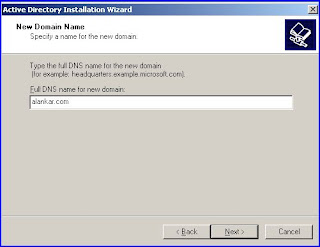
  9. In “New Domain Screen” write the Fully Qualified Domain Name – FQDN of the Active Directory Domain, here I will use “alankar.com” Domain.


  10. In “NetBIOS Domain Name”, accept the Default Name and click next. By default this name will be the first Name Space of your domain, in our example, will be “ALANKAR”, it is recommended to keep this default name and not to change it, but if you want to change it you can.

  11. In “Database and Log Folders” Screen, the default location of AD Database and Logs will be Under Windows Directory hosted in C Drive, but this does not mean that you can’t change it, so if you plan to keep AD Database and Logs on a separate Drive on your server, so click on browse and choose the new location on the new Drive for your AD Database and Logs. But if you are planning not to change the default location of the Database and Logs of your Active Directory, then keep the default location, and then click on Next.


  12. In “Shared System Volume” Screen, also if you are planning to keep your System Volume Files (Group Policy and Scripts) of your Active Directory on a separate Drive then change the location of the SYSVOL Folder location by clicking on Browse tab and choose the new location. If you don’t want to change the default location of this folder, just simply click on Next.


  13. In “DNS Registration Diagnostics” Screen, choose Second Option to allow Windows Install and Configure DNS Services required for Active Directory on the Server. Click on Next.


  14. In “Permission” Screen, As explained in this screen, first option is compatible with pre-Windows 2000 Server Operating Systems (which is Windows NT4.0), but the second option is compatible with only Windows 2000 and 2003 server operating system. So if you are not planning to have NT4.0 Servers under your new domain, then choose second option. Make your decision, and when you finish, Click on Next.


  15. In the “Directory Services Restore Mode Administrator Password”, enter the Restore Mode Password, restore mode option is used only in the Directory Service Restore Mode option used to restore Active Directory. This Password should be easy to remember.


  16. At the Summary Screen, review the settings and options that been selected during the Active Directory Wizard, and if these options and settings are correct, proceed with Active Directory Installation by clicking on Next.

  17. Installation of Active Directory on your new Server will start, and the Server will be the first Domain Controller under ALANKAR.COM Forest/Domain.


  18. During the Active Directory Promotion, the System will prompt you to provide Windows Server 2003 Media CD to copy some files requires for DNS Service. Make sure that you provided the correct Windows Server version for that server.


  19. When Active Directory Wizard finishes the installation and Promotion of your server to Domain Controller, the following screen will appear. Click on Finish.


  20. Click on “Restart Now” to restart the Server
Note: After the server restarted successfully, logon to your Domain (in this case, ALANKAR Domain) and open the Event Viewer of the server and make sure that you don’t see any critical Error Message, and that you can open Active Directory Users and Computers Console where you can see the whole ALANKAR.COM Domain Structure.

Requirements for Active Directory Installation on the First Domain Controller in your Domain

Active Directory installation has certain requirements and prerequisites that you have to meet and fulfill before you start the installation of Active Directory on your First Domain Controller.

These requirements are:


  • NTFS Partition

    You must have at least one partition formatted as NTFS, preferably the partition you used to install Windows on which is C Drive, or if you decided to install Active Directory Database on a drive (Faster Drive) other than C Drive, then this Drive has to be NTFS Formatted Partition. Normally you choose to install or host Active Directory Database on another drive if you are seeking for best performance.

    To convert a partition (C Drive) to NTFS type the following command in the command prompt window:

    Convert c:/fs:ntfs

  • Enough Free Space

    At least 250 MB of free space on the partition you plan to install AD on as minimum recommendation, but Of course you need more than 250 MB if you plan to create more users, groups and various Active Directory Objects.

  • Administrator Account

    Since you are installing the First Domain Controller of your newly prepared server then the logged on user (by default Administrator) needs to have administrative access locally on the server or needs to be member of Local Administrators Group.

  • Operating System

    Active Directory only can be installed on Windows 2000 Server or Windows Server 2003 (all the editions like Standard, Enterprise, and Datacenter). So don’t try to install Active Directory on Windows 2000 Professional or Windows XP or Windows Vista.

  • Supported Network Card - NIC

    In order to start communicating with Active Directory and use the Domain from your client, then your Domain Controller should have Network Card, and your PC as well, I know this is a standard requirements for all new servers, but just in case you forget that so I am reminding you here about the necessity of having Network Card installed and fixed into your server before installing Active Directory on it. From other hand, if you don’t have any Network Card installed or detected by your server, then you will NOT be able to install Active Directory on the server.

  • Dedicated (Fixed) IP Address

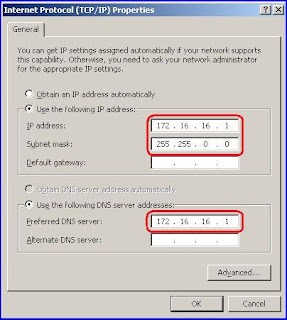
    You need a dedicated IP address to install Active Directory. If you do not use a dedicated IP address, DNS registrations may not work and Active Directory functionality may be lost. The Active Directory domain controller should point to itself (its own IP address) in the DNS server list so it will point to itself when registering SRV records and when querying the DNS database.

    To configure your IP configuration, use the following steps:
  1. Right-click My Network Places and then click Properties.

  2. Right-click Local Area Connection and then click Properties.

  3. Click Internet Protocol (TCP/IP), and then click Properties

  4. Under “Use the Following IP Address” section, type in a static IP address, subnet mask, and gateway address (Gateway is optional, based on your network configuration, but this settings will not affect AD installation), Enter the server's IP address in the Preferred DNS server box:
  5. Then click on OK to save the TCP/IP Settings.
  6. Finally click OK to close the Local Area Connection Property Page.
  • Active Network Connection


    Active Directory installation requires an active network connection. When you attempt to use Dcpromo.exe to promote a Windows 2000 Server or Windows Server 2003 - based computer to a domain controller, you may receive the following error message:

    Active Directory Installation Failed
    The operation failed with the following error
    The network location cannot be reached. For further information about network troubleshooting, see Windows Help.

    This problem can occur if the network cable is not plugged into a hub or other network device. To resolve this problem, connect the network cable of the server into a hub or switch. If network connectivity is not available for any reason and this is the first domain controller in a new forest, you can finish the installation of Active Directory on your First Domain Controller by installing Microsoft Loopback Adapter, but using the Loopback Adapter will not allow any communication between this Domain Controller and the rest of the network.

  • DNS Service and Configuration

    Active Directory depends on DNS Server that supports the new zone type (which is the Integrated Zone). By default, when you install Active Directory on the first Domain Controller and you didn’t install and configure the DNS Service on this domain controller, then wizard will detect this issue and will offer you to install and configure DNS Service on this server on behalf of you, so let Active Directory install the DNS Server on the first domain controller and configures the Active Directory Zones for you during the Installation Wizard of Active Directory.

  • A Domain name (FQDN and NetBIOS Names)

    You need to have a Fully Qualified Domain Name for your Active Directory Forest and Domain Infrastructure. If you were planning to have a Single Name Space for your domain, then its NOT recommended at all, you need to have a Fully Qualified Domain Name – FQDN for your domain. For example, a domain called “Domain” is not recommended in AD installation, so, you need to consider to call it “Domain.com” for example.

Monday, October 15, 2007

General Recommendations for FSMO Roles Placement

  • Place the RID and PDC emulator roles on the same domain controller. Good communication from the PDC to the RID master is desirable as down level clients and applications target the PDC, making it a large consumer of RIDs.

  • As a general rule, the infrastructure master should be located on a non global catalog server that has a direct connection object to some global catalog in the forest, preferably in the same Active Directory site. Because the global catalog server holds a partial replica of every object in the forest, the infrastructure master, if placed on a global catalog server, will never update anything, because it does not contain any references to objects that it does not hold. Two exceptions to the "do not place the infrastructure master on a global catalog server" rule are:


    1. Single domain forest: In a forest that contains a single Active Directory domain, there are no phantoms, and so the infrastructure master has no work to do. The infrastructure master may be placed on any domain controller in the domain, regardless of whether that domain controller hosts the global catalog or not.


    2. Multi domain forest: Where every domain controller in a domain holds the global catalog: If every domain controller in a domain that is part of a multi domain forest also hosts the global catalog, there are no phantoms or work for the infrastructure master to do. The infrastructure master may be put on any domain controller in that domain.

  • At the forest level, the schema master and domain naming master roles should be placed on the same domain controller as they are rarely used and should be tightly controlled. Additionally, the domain naming master FSMO should also be a global catalog server. Certain operations that use the domain naming master, such as creating grand-child domains, will fail if this is not the case.


    Note: If the Schema Master or RID role is seized, it is critical that the original server never be restored and brought back to the forest. To do so may cause Schema corruption and data inconsistency.

  • In order to facilitate faster user authentication, the PDC emulator should be placed in a location that includes a large number of users from that domain. In addition, ensure that the location is well connected to other locations to minimize replication latency.


What is FSMO (Flexible Single-Master Operation) Roles?

The Microsoft Windows Active Directory is the central repository in which all objects in an enterprise and their respective attributes are stored. It is a hierarchical, multi-master enabled database, capable of storing millions of objects. Because it is multi-master, changes to the database can be processed at any given domain controller (DC) in the enterprise regardless of whether the DC is connected or disconnected from the network. Because an Active Directory role is not bound to a single DC, it is referred to as a Flexible Single Master Operation (FSMO) Role.

Currently in Windows 2000 and Windows Server 2003 there are Five FSMO roles, which are owned by the First Domain Controller installed into the Forest, any new domain installed under the forest will have Three (Domain-Level) FSMO Roles. These roles break down into Two Forest-Level roles and Three domain-level roles.
The two forest-level roles are:
  • The schema master, which governs changes to the schema, controls all updates and modifications to the Active Directory Schema. To update the schema of a forest, you must have access to the Schema Master; therefore you need to be member of Schema Admins Group in Active Directory. There can be only one schema master in the whole forest.
  • The domain naming master, which adds domains to and removes domains from the forest, controls the addition or removal of domains in the forest. There can be only one domain naming master in the whole forest. You need to be member of Enterprise Admins Group in order to gain access on the Domain Naming Master Role Functionality.

The three domain-level roles for Active Directory domain controllers are:

  • The primary domain controller (PDC) emulator, which processes any replication requests from Microsoft Windows NT 4.0 backup domain controllers (BDCs) and processes all password updates from clients not running the Active Directory client software. In addition, the PDC emulator is checked on an authentication failure to see if a password has been changed but has not had a chance to replicate to all the domain controllers at that point in time.
  • The Relative Identifier (RID) master, which allocates RIDs to all domain controllers to ensure that all security principles are unique.
  • The infrastructure master for a given domain, which maintains a list of the security principals from other domains that are members of groups within its domain

Saturday, July 21, 2007

MS Exchange Server 2007 – Active Directory Preparation

How to Prepare Active Directory for Exchange Server 2007 Installation:

As we all know, Microsoft Exchange Server 2007 uses the Active Directory directory service to store and share directory information with Microsoft Windows, so without Active Directory directory Services, you will not be able to have any version of Exchange Server 200x installed under your network. If you have already Active Directory deployed under your production network and you want to deploy Exchange Server 2007, then continue reading this article to know how to prepare Active Directory Domain Infrastructure for Exchange Server 2007 Deployment and Installation, but If you have NOT yet deployed Active Directory, stop reading this article and go and deploy Active Directory First then come here again to continue : ).
In order to be able to install and deploy MS Exchange Server 2007 under your production or testing lab environment, you need to first prepare your Active Directory for Exchange Server 2007 before doing any kind of Exchange Server 2007 installation. Here I will try to explain how to prepare the Active Directory directory service and domains for installing Microsoft Exchange Server 2007.

As I mentioned on my previous article posted previously in my blog under the name of “Microsoft Exchange Server 2007 Requirements” you have to make sure that you have met all Exchange Server 2007 Hardware, Infrastructure, and System Requirements before you proceed with Active Directory Preparation Steps mentioned on this article.
Now, here are the steps required to prepare your Active Directory for Exchange Server 2007 Deployment and Installation under you Organization:

1. Prepare Exchange Legacy Permissions

If you have Exchange Server 2003 or Exchange 2000 Server running under your Exchange Organization, then open a Command Prompt window from , and then run one of the following commands:

  • To prepare legacy Exchange permissions in every domain in the forest that contains the Exchange Enterprise Servers and Exchange Domain Servers groups, run:

    setup /PrepareLegacyExchangePermissions

  • To prepare legacy Exchange permissions in a specific domain, run

    setup /PrepareLegacyExchangePermissions:

Permission required to run these commands:

  • To run this command to prepare every domain in the forest, you must be a member of the Enterprise Admins group.

  • To run this command to prepare a specific domain, you must be a member of the Exchange Organization Administrators group and you must be a member of the Domain Admins group in the domain that you will prepare.

  • If you do not specify a domain, the domain in which you run this command must be able to contact all domains in the forest.

  • After you run this command, you must wait for the permissions to replicate across your Exchange organization before continuing to the next step. If the permissions have not replicated, the Recipient Update Service on your Exchange Server 2003 or Exchange 2000 Server computers could fail. The amount of time that replication takes depends on your Active Directory site topology.

  • To track the progress of Active Directory replication, you can use the Active Directory Replication Monitor tool (replmon.exe), which is installed as part of the Microsoft Windows Server 2003 Support Tools Setup. By default, it is located at "%programfiles%\support tools\." Add your domain controllers as monitored servers so that you can track the progress of replication throughout the domain

2. Prepare Active Directory Schema

From a Command Prompt window, run the following command:

setup /PrepareSchema

Very Important Note: You must NOT run this command in a forest in which you do not plan to run setup /PrepareAD. If you do, the forest will be configured incorrectly, and you will not be able to read some attributes on user objects. So, if you didn’t follow the steps here correctly, Don’t Blame meJ.

Permission required to run these commands:

  • This command connects to the schema master and imports LDAP Data Interchange Format (LDIF) files to update the schema with Exchange 2007 specific attributes.

  • To run this command, you must be a member of the Schema Admins group and the Enterprise Admins group.

  • You must run this command on a computer that is in the same domain and the same Active Directory site as the schema master.

  • If you have not completed Step 1, setup /PrepareSchema will perform the PrepareLegacyExchangePermissions step. To complete the PrepareLegacyExchangePermissions step, the domain in which you run this command must be able to contact all domains in the forest.

  • After you run this command, you should wait for the changes to replicate across your Exchange organization before continuing to the next step. The amount of time this takes is dependent upon your Active Directory site topology.

3. Prepare Active Directory directory Service


From a Command Prompt window, run the following command:


setup /PrepareAD [/OrganizationName: ]

What does this command do ?

  • This command configures global Exchange objects in Active Directory, creates the Exchange Universal Security Groups (USGs) in the root domain, sets permissions on the Exchange configuration objects, and prepares the current domain. The global objects reside under the Exchange organization container. If no Exchange organization container exists, you must specify an organization name by using the /OrganizationName parameter. The organization container will be created with the name that you specify.

  • This command creates the Exchange 2007 Administrative Group called Exchange Administrative Group (FYDIBOHF23SPDLT). It also creates the Exchange 2007 Routing Group called Exchange Routing Group (DWBGZMFD01QNBJR).

    Very Important Notes:

    Do not move Exchange 2007 servers out of Exchange Administrative Group (FYDIBOHF23SPDLT) and do not rename Exchange Administrative Group (FYDIBOHF23SPDLT) by using a low-level directory editor. Exchange 2007 must use this administrative group for configuration data storage. We do not support moving Exchange 2007 servers out of Exchange Administrative Group (FYDIBOHF23SPDLT) or renaming of Exchange Administrative Group (FYDIBOHF23SPDLT).

    Do not move Exchange 2007 servers out of Exchange Routing Group (DWBGZMFD01QNBJR) and do not rename Exchange Routing Group (DWBGZMFD01QNBJR) by using a low-level directory editor. Exchange 2007 must use this routing group for communication with earlier versions of Exchange . We do not support moving Exchange 2007 servers out of Exchange Routing Group (DWBGZMFD01QNBJR) or renaming of Exchange Routing Group (DWBGZMFD01QNBJR).

  • This command creates the Unified Messaging Voice Originator contact in the Microsoft Exchange System Objects container of the root domain.

  • This command prepares the local domain for Exchange 2007.
    To run this command, you must be a member of the Enterprise Admins group.

  • If you have Exchange Server 2003 servers in your organization, you must be an Exchange Full Administrator to run this command.

  • The Exchange organization name cannot contain the following characters: ~ (tilde), ` (grave accent), ! (exclamation point), @ (at sign), # (number sign), $ (dollar sign), % (percent sign), ^ (caret), & (ampersand), * (asterisk), () (parentheses), _ (underscore), + (plus sign), = (equal sign), {} (braces), [] (brackets), (vertical bar), \ (backslash), : (colon), ; (semicolon)," (quotation mark), ' (apostrophe), <> (angle brackets), , (comma), . (period), ? (question mark), / (slash mark), White spaces at the beginning or end.

  • You must run this command on a computer that is in the same domain and the same Active Directory site as the Schema Master.

  • If you have not completed Step 1, setup /PrepareAD will perform the PrepareLegacyExchangePermissions step. To complete the PrepareLegacyExchangePermissions step, the domain in which you run this command must be able to contact all domains in the forest. If you are also a member of the Schema Admins group, and if you have not completed Step 2, setup /PrepareAD will perform the PrepareSchema step.

  • After you run this command, you should wait for the changes to replicate across your Exchange organization before continuing to the next step. The amount of time this takes is dependent upon your Active Directory site topology.

To verify that this step completed successfully, make sure that there is a new organizational unit (OU) in the root domain called Microsoft Exchange Security Groups. This OU should contain the following new Exchange USGs:

  • Exchange Organization Administrators
  • Exchange Recipient Administrators
  • Exchange View-Only Administrators
  • Exchange Servers
  • ExchangeLegacyInterop

When you install Exchange 2007, Setup will add the Exchange Organization Administrators USG as a member of the local Administrators group on the computer on which you are installing Exchange. Be aware that the local Administrators group on a domain controller has different permissions than the local Administrators group on a member server. If you install Exchange 2007 on a domain controller, the users who are Exchange Organization Administrators will have additional Windows permissions that they do not have if you install Exchange 2007 on a computer that is not a domain controller.

4. Prepare other specific Domains (if exists).

From a Command Prompt window, run one of the following commands:

  • Run setup /PrepareDomain to prepare the local domain. Note that you do not need to run this in the domain where you ran Step 3. Running setup /PrepareAD prepares the local domain.

  • Run setup /PrepareDomain: to prepare a specific domain.

  • Run setup /PrepareAllDomains to prepare all domains in your organization.

These commands perform the following tasks:

  • Sets permissions on the Domain container for the Exchange Servers, Exchange Organization Administrators, Authenticated Users, and Exchange Mailbox Administrators.

  • Creates the Microsoft Exchange System Objects container if it does not exist, and sets permissions on this container for the Exchange Servers, Exchange Organization Administrators, and Authenticated Users.

  • Creates a new domain global group in the current domain called Exchange Install Domain Servers. It also adds the Exchange Install Domain Servers group to the Exchange Servers USG in the root domain.

Note the following:

  • For domains that are in an Active Directory site other than the root domain, /PrepareDomain might fail with the following messages:

    "PrepareDomain for domain has partially completed. Because of the Active Directory site configuration, you must wait at least 15 minutes for replication to occur, and run PrepareDomain for again."

    "Active Directory operation failed on . This error is not retriable. Additional information: The specified group type is invalid.Active Directory response: 00002141: SvcErr: DSID-031A0FC0, problem 5003 (WILL_NOT_PERFORM), data 0The server cannot handle directory requests."

    If you see these messages, wait for or force Active Directory replication between this domain and the root domain, and then run /PrepareDomain again.
  • To run setup /PrepareAllDomains you must be a member of the Enterprise Admins group.

  • To run setup /PrepareDomain, if the domain that you are preparing existed before you ran setup /PrepareAD, you must be a member of the Domain Admins group in the domain. If the domain that you are preparing was created after you ran setup /PrepareAD, you must be a member of the Exchange Organization Administrators group, and you must be a member of the Domain Admins group in the domain.

To verify that this step completed successfully, confirm the following:

  • You have a new global group in the Microsoft Exchange System Objects container called Exchange Install Domain Servers. To view the Microsoft Exchange System Objects container in Active Directory Users and Computers, on the View menu, click Advanced Features. The Exchange Install Domain Servers group is used if you install Exchange 2007 in a child domain that is an Active Directory site other than the root domain. The creation of this group allows you to avoid installation errors if group memberships have not replicated to the child domain.

  • The Exchange Install Domain Servers group is a member of the Exchange Servers USG in the root domain.

  • On each domain controller in a domain in which you will install Exchange 2007, the Exchange Servers USG has permissions on the Domain Controller Security Policy\Local Policies\User Rights Assignment\Manage Auditing and Security Log policy.

Thursday, May 11, 2006

If you used ADMT v 2.0 then you need to see ADMT v 3.0

The Active Directory Migration Tool version 3 (ADMT v3) simplifies the process of restructuring your operating environment to meet the needs of your organization. You can use ADMT v3 to migrate users, groups, and computers from Microsoft® Windows NT® 4.0 domains to Active Directory® directory service domains; between Active Directory domains in different forests (interforest migration); and between Active Directory domains in the same forest (intraforest migration). ADMT v3 also performs security translation from Windows NT 4.0 domains to Active Directory domains and between Active Directory domains in different forests.
I personally used ADMT v2.0 to migrate 5400 Users with password from NT4.0 to 2000 and the migration was successfully. and i used it to migrate 1000 users from 2000 to 2003. I saw my friend doing a full migration from NT4.0 to 2003 with desktops been joined to the new domain without changing of their profiles, also he migrated Directory Services from 5.5 to 2003.
I love this utility, and for you to start love it you need to download it & read about it :):)